More
    Home Blog Page 166

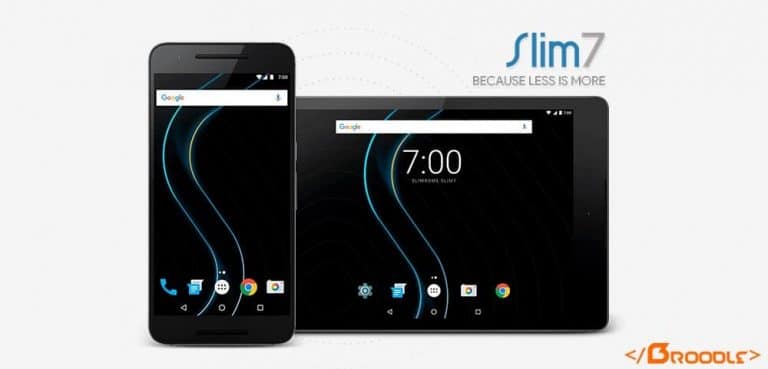
    Slim7 Stable Android 7.1 Nougat ROM for Xiaomi Redmi Note 4

    Official Slim7 Stable Light Weight Custom ROM For Xiaomi Redmi Note 4 (Mido)


    Official Slim7 Stable

    Android Nougat Based Stable Rom for Xiaomi Redmi Note 4 – Weekly – Light Weight


    SlimROM is a custom android operating system. The main goal is to offer users a slimmed down but still feature rich alternative to other android operating systems. The entire SlimTeam works together to bring you this tailor-made beauty straight from Android Open Source Project (AOSP) source code.


    You Might Like:


    Installation Instructions

    WARNING: This procedure will factory reset your device! Accounts, applications, settings, contacts, etc will be lost, so make sure to backup them before going further!

    Step 1: First make sure that you have flashed TWRP Recovery.

    Step 2: Download the file Rom zip file from the download section below to and place it on your phone.

    Step 3: Next Download the file OpenGApps for ARM64  to your phone from the links below.

    Step 4: Now reboot your device into Recovery mode by holding Power button with Volume Up + Volume Down button simultaneously.

    Step 5: In Recovery mode first format user data, cache and Dalvik cache and do a factory reset.

    Step 6: After that choose to Install and install the ROM and the GApps zip files.

    Step 7: After the process completes reboot your device.


    That’s it, first boot will take time after that choose your language and complete the setup process.


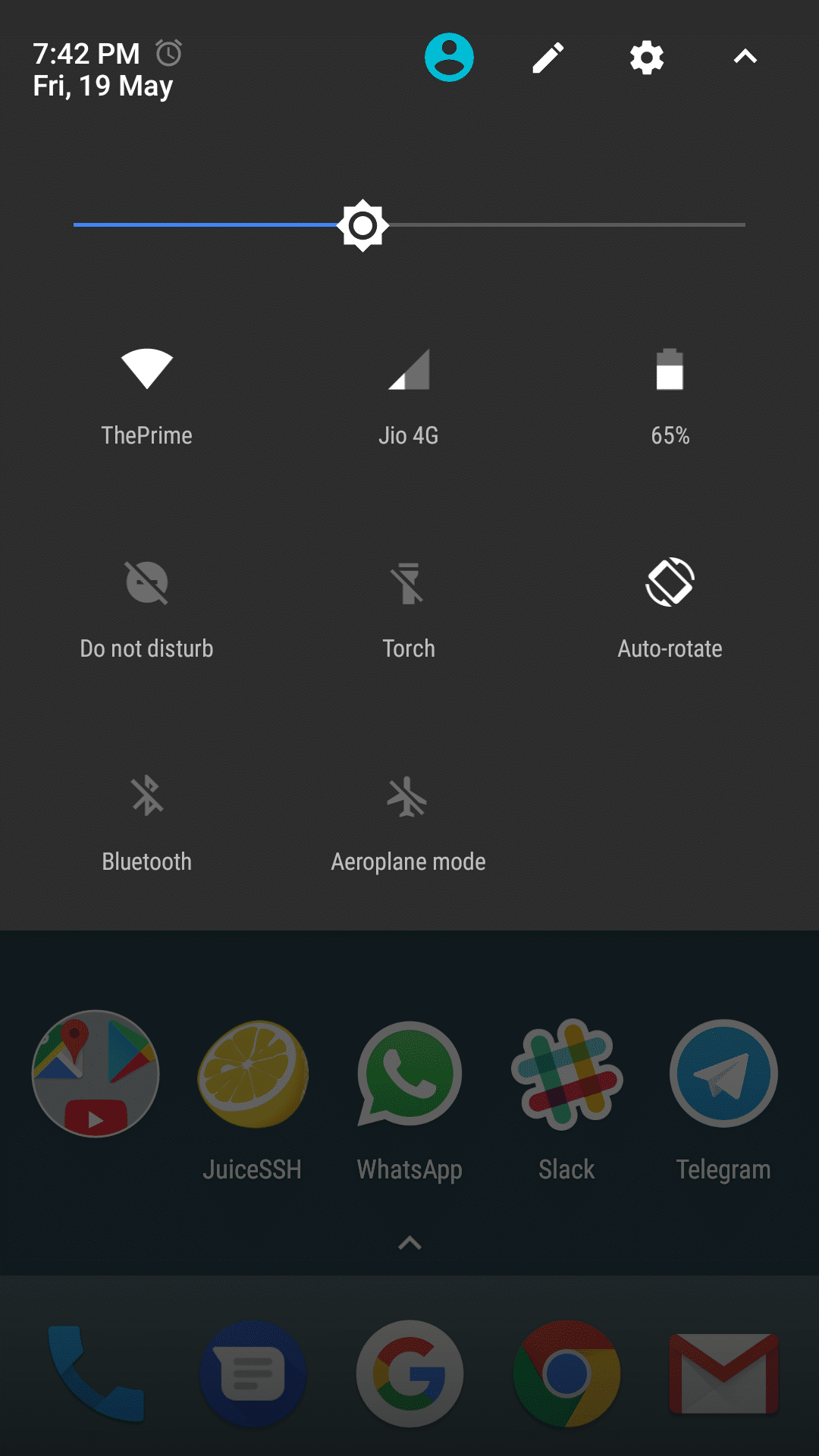
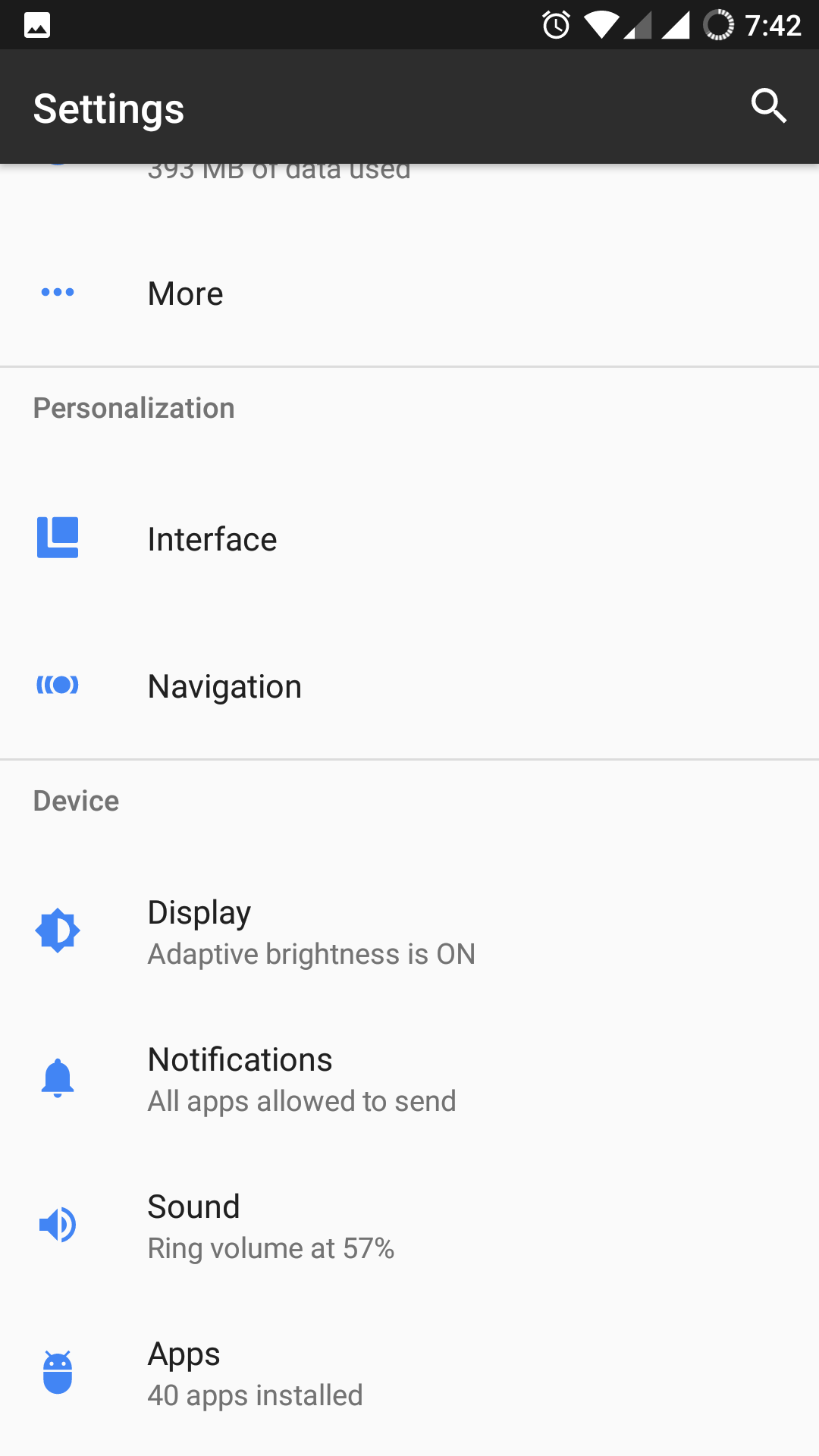
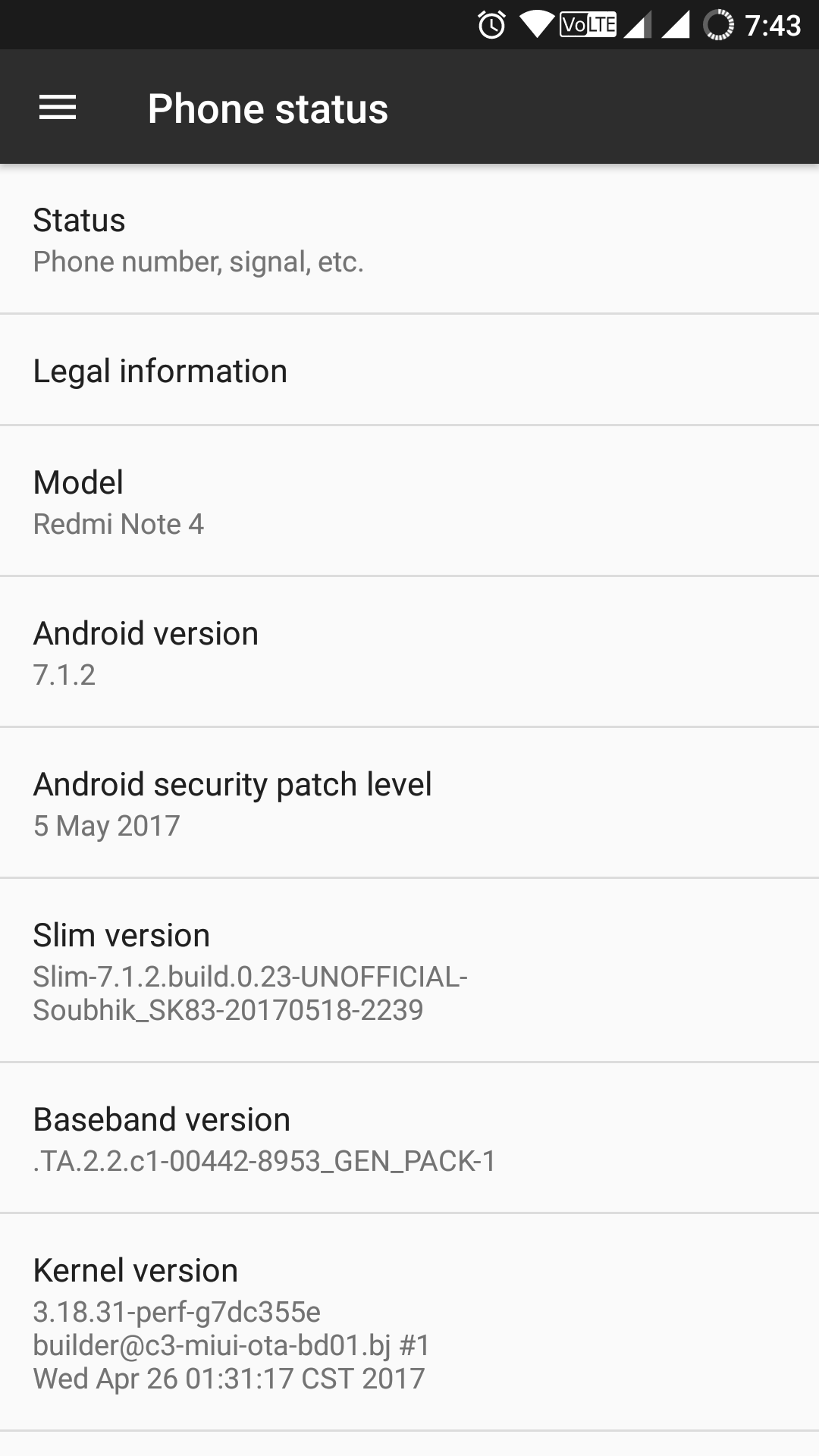
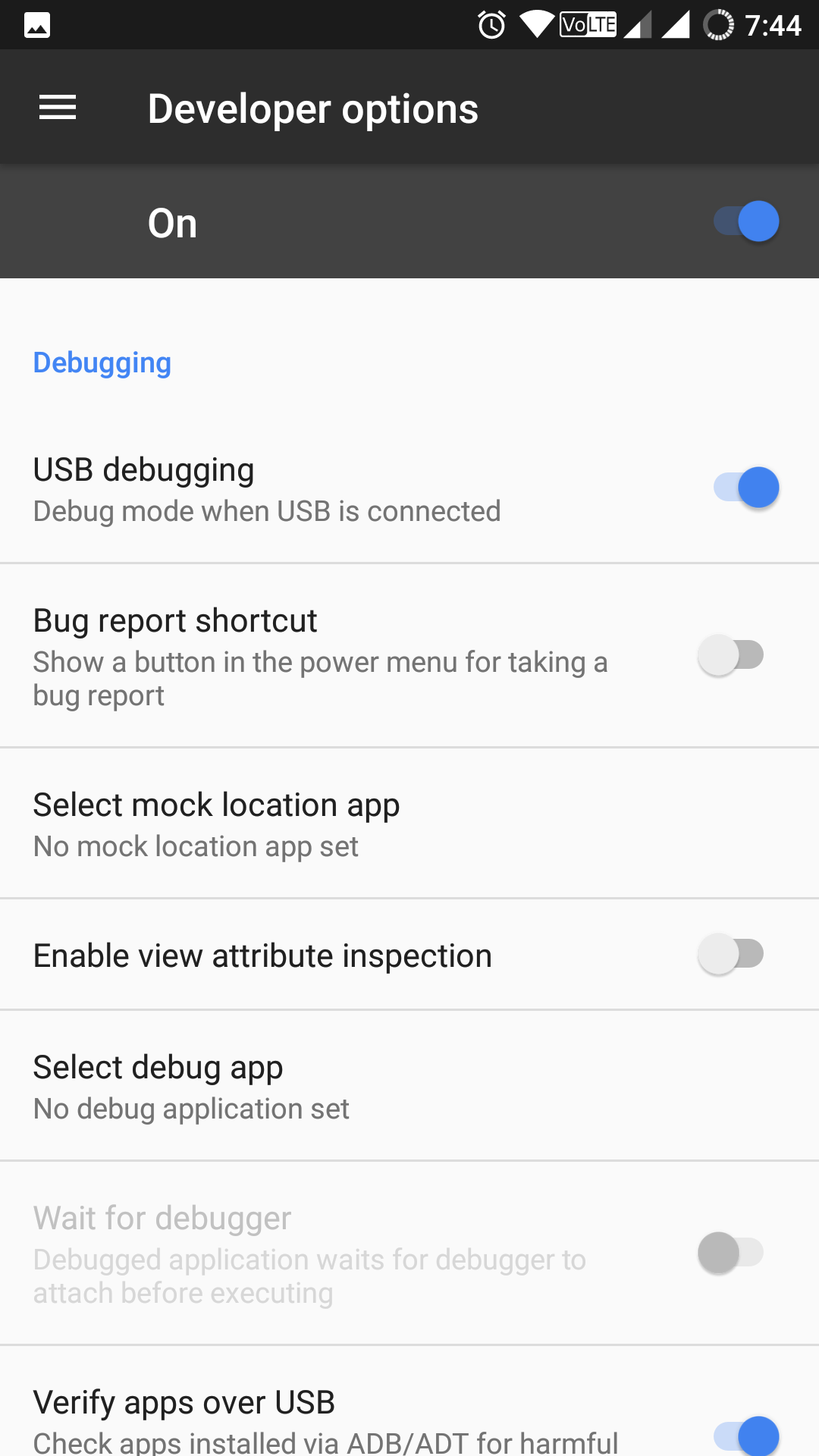
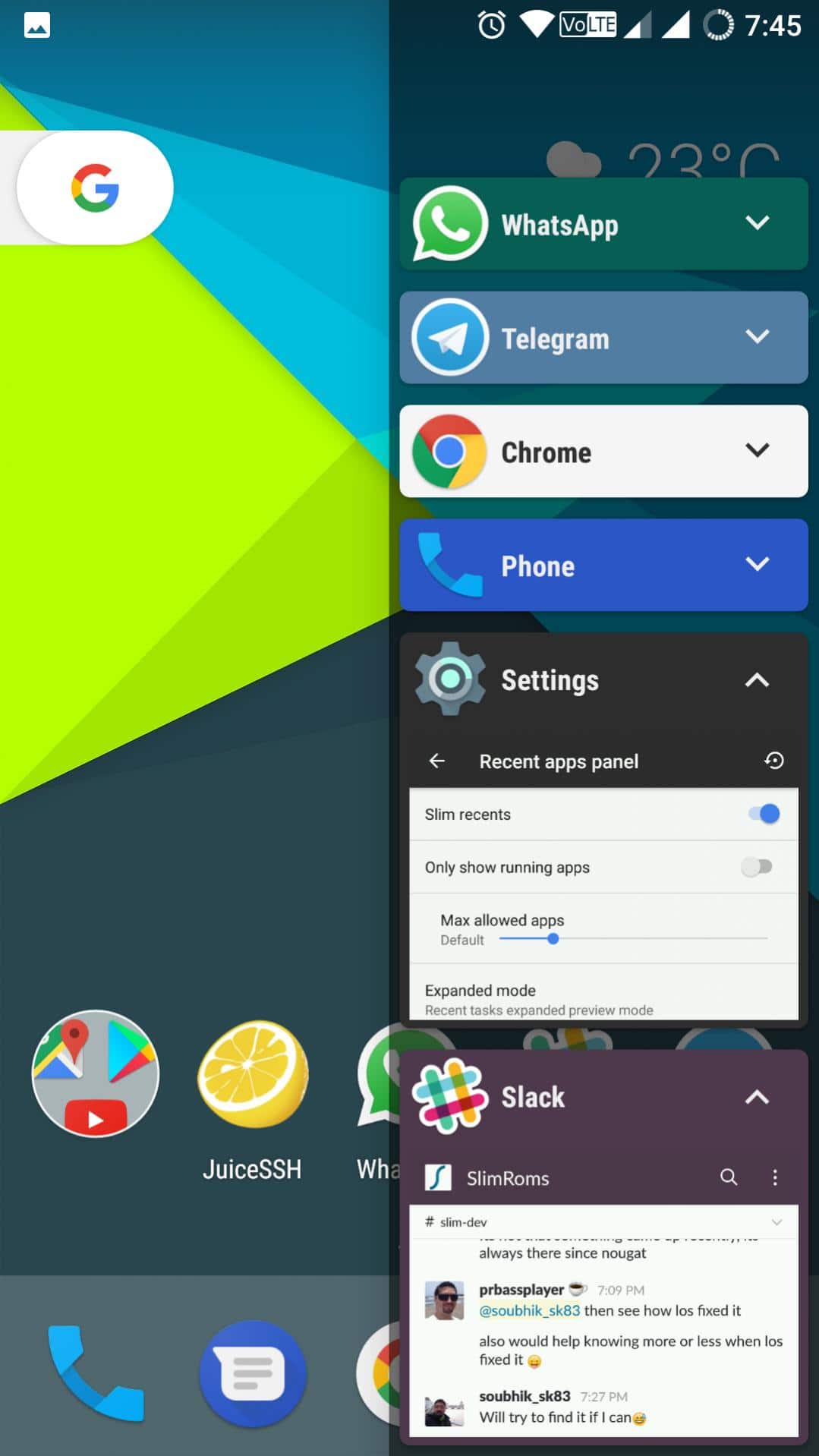
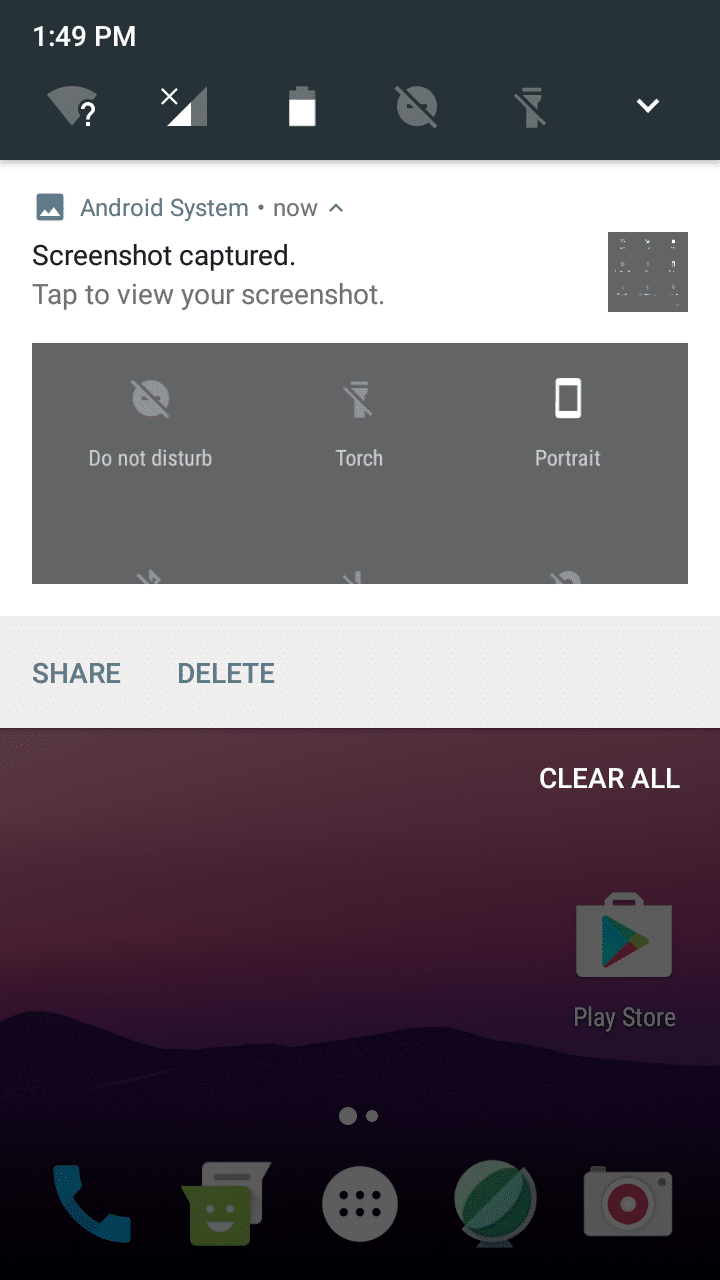
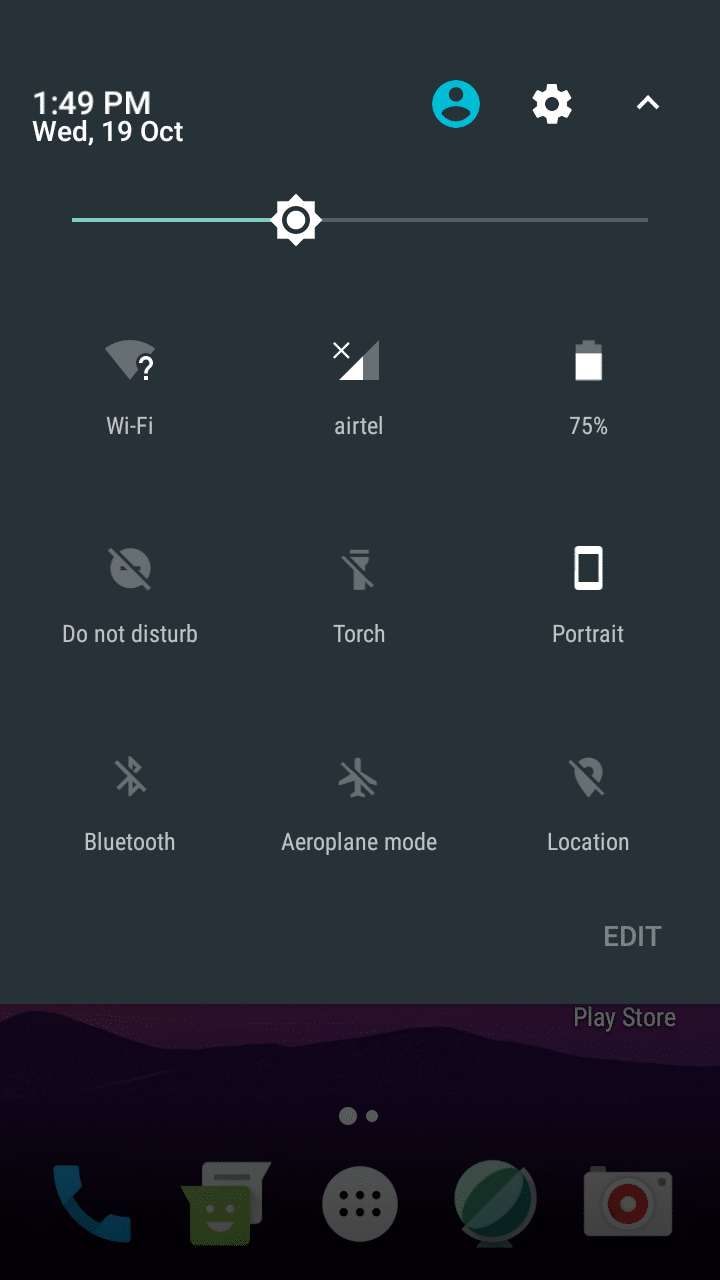
    Screenshots


    Downloading


    Credits


    Subscribe to our Mailing list for more Xiaomi Redmi Note 4 Roms.


    Share your experience with this ROM in the comment section below


    Official AICP Android 7.1.2 Nougat ROM For Xiaomi Redmi Note 4 (Mido)

    Official AICP 12.1 Custom ROM For Xiaomi Redmi Note 4 (Mido)


    Official Android Ice Cold Project

    Android Nougat Based Stable Rom for Xiaomi Redmi Note 4 – OMS – Nightlies


    AICP is known by everyone as Ice Cold Project that started on Desire HD and since then evolved into a mature ROM with the BEST community you can find. Until Lollipop, Rom has always been AOKP based. Unfortunately, since AOKP either stopped development or will make a comeback later this year, AICP changed base to CM when it comes to hardware, drivers and some features.


    You Might Like:


    Installation Instructions

    WARNING: This procedure will factory reset your device! Accounts, applications, settings, contacts, etc will be lost, so make sure to backup them before going further!

    Step 1: First make sure that you have flashed TWRP Recovery.

    Step 2: Download the file Rom zip file from the download section below to and place it on your phone.

    Step 3: Next Download the file OpenGApps for ARM64  to your phone from the links below.

    Step 4: Now reboot your device into Recovery mode by holding Power button with Volume Up + Volume Down button simultaneously.

    Step 5: In Recovery mode first format user data, cache and Dalvik cache and do a factory reset.

    Step 6: After that choose to Install and install the ROM and the GApps zip files.

    Step 7: After the process completes reboot your device.


    That’s it, first boot will take time after that choose your language and complete the setup process.


    Installing OTA Updates:

    1. To flash OTA updates make sure you have TWRP Recovery Installed
    2. You can either download updates manually or use CWM and OTA app, but make sure to flash the zip file manually from TWRP Recovery. If you use OTA App the downloaded zip gets saved under AICP_ota folder on your internal SDcard.


    Downloading


    Credits


    Subscribe to our Mailing list for more Xiaomi Redmi Note 4 Roms.


    Share your experience with this ROM in the comment section below


    Official AICP Android 7.1 Nougat ROM for Xiaomi Redmi 1S (Armani)

    0

    Official Android 7.1 Nougat based AICP ROM for Xiaomi Redmi 1S (Armani)


    Official Android Ice Cold Project

    AICP 12.x – OMS – OTA Enabled – Nightly Builds

    Android 7.1.1 Nougat for Xiaomi Redmi 1S through Official AICP Rom


    AICP is known by everyone as Ice Cold Project that started on Desire HD and since then evolved into a mature ROM with the BEST community you can find. Until Lollipop, Rom has always been AOKP based. Unfortunately, since AOKP either stopped development or will make a comeback later this year, AICP team changed the base to CM when it comes to hardware, drivers, and some features.


    You Might Like:-


    Installation Instructions

    Step 1: Download the ROM/Gapps zip files from the download section below.

    Step 2: Copy ROM/Gapps zip file to sd-card (internal).

    Step 3: Now Boot your device into custom recovery (TWRP recommended).

    Step 4: From Recovery menu select backup and take a full nandroid backup.

    Step 5: Now wipe system, data, Dalvik cache and cache.

    Step 6: Next Flash the Custom ROM zip file.

    Step 7: After that flash the latest version of Gapps.zip file to get the Google Apps.

    Step 8: Finally reboot your device continue to the on-screen setup of AICP ROM.


    Update TWRP Recovery to Latest Version:

    1. Download the latest version of TWRP recovery from the download section below and place it on your sd card.

    2. Boot your phone into the Recovery Mode.

    3. Tap install in TWRP Recovery and select the downloaded recovery.img file to flash it.

    4. That’s it, again reboot into the recovery mode to get the latest version of TWRP Recovery.


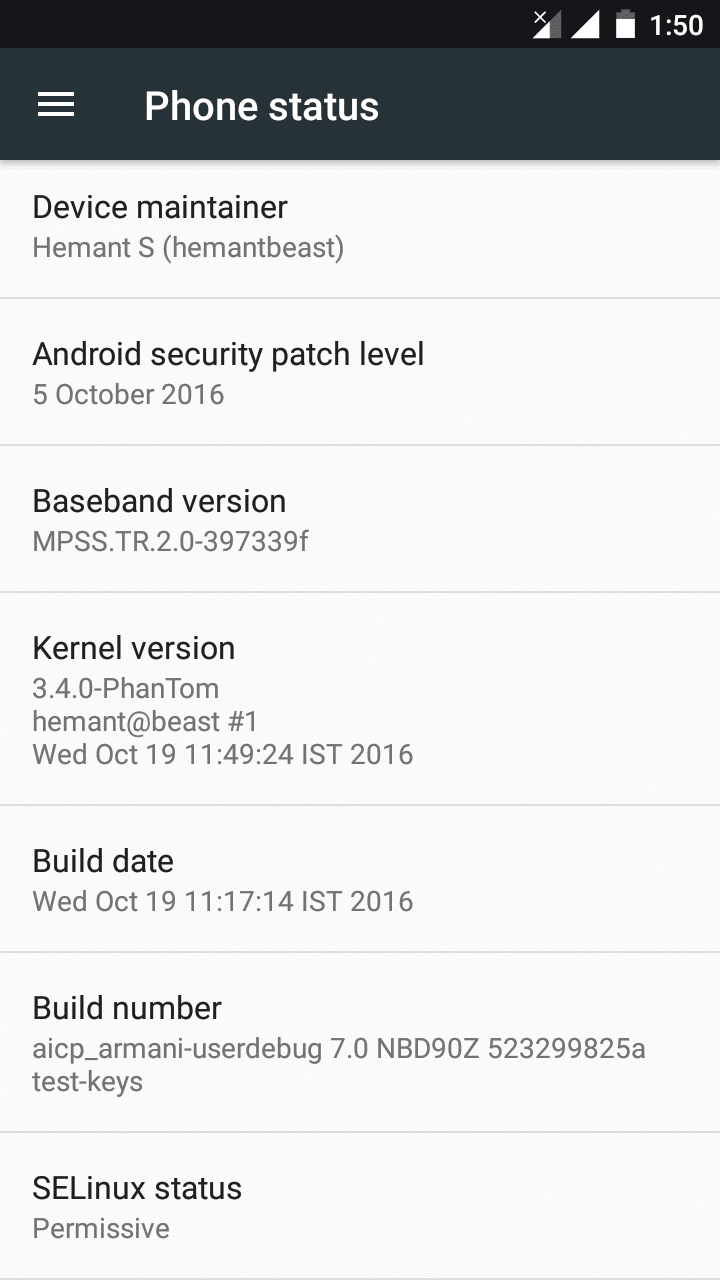
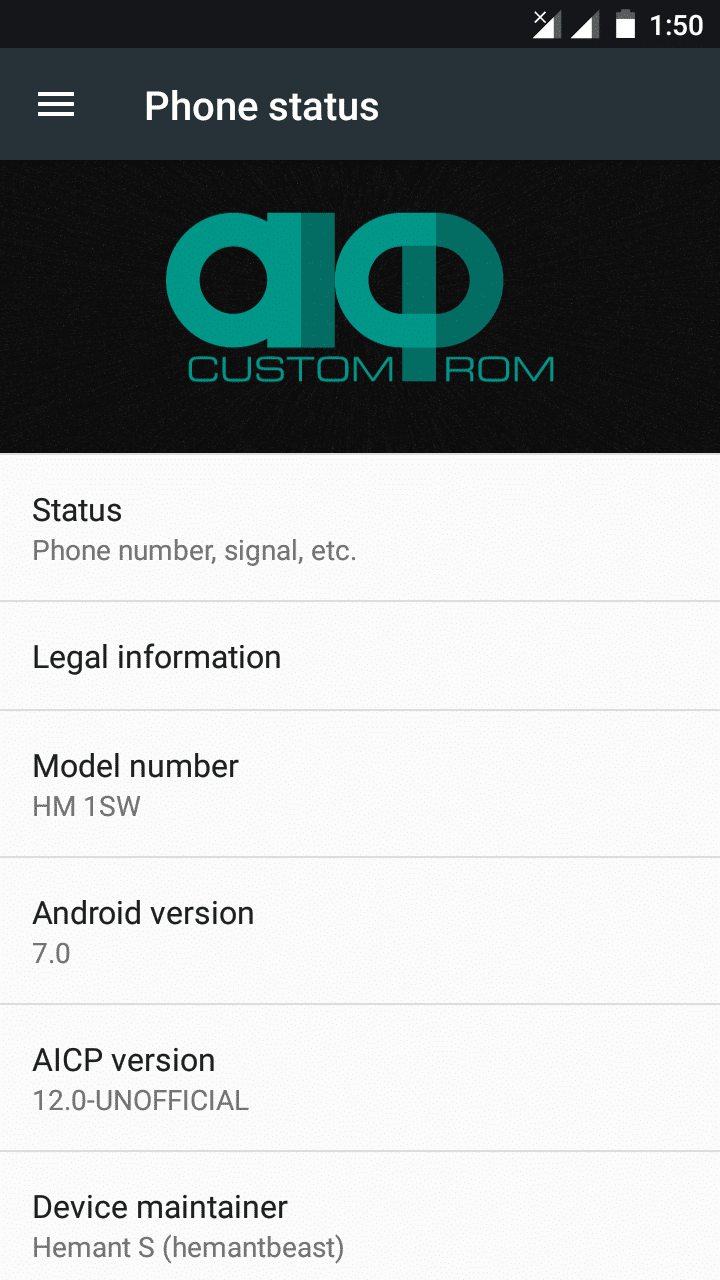
    Screenshots


    Downloading


    Credits


    Like Our Facebook Page for Development and Support about Xiaomi Redmi 1S.

    Do share your reviews and queries about this ROM in the comments below.

    How to Install Android 7.1.2 Nougat Hexagon ROM in Xiaomi Redmi 1S

    0

    Official Android 7.1.2 Nougat based Hexagon ROM for Xiaomi Redmi 1S (Armani)


    Hexagon ROM

    Android 7.1.1 Nougat for Xiaomi Redmi 1S through Official Hexagon ROM

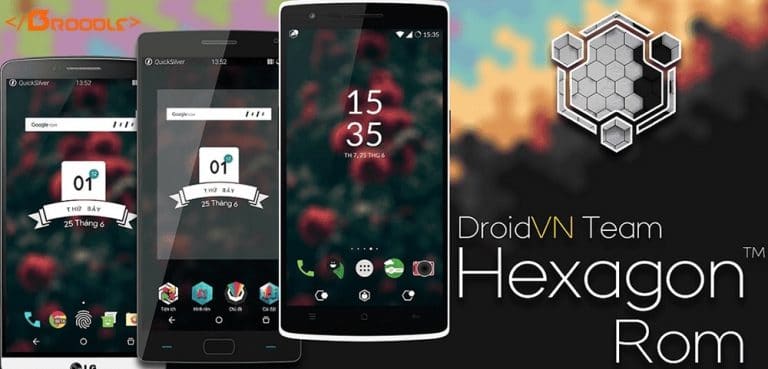
    Based on Lineage OS with the latest, the greatest features from all the custom ROMs out there. DroidVNTeam hopes that we can bring a whole new experience to Android users.


    You Might Like:-


    Installation Instructions

    Step 1: Download the ROM/Gapps zip files from the download section below.

    Step 2: Copy ROM/Gapps zip file to sd-card (internal).

    Step 3: Now Boot your device into custom recovery (TWRP recommended).

    Step 4: From Recovery menu select backup and take a full nandroid backup.

    Step 5: Now wipe system, data, Dalvik cache and cache.

    Step 6: Next Flash the Custom Rom zip file.

    Step 7: After that Reboot your device and on successful boot again boot into recovery mode and after that flash Gapps and reboot (Don’t flash Gapps along with the ROM, first reboot and then flash Gapps.

    Step 8: Finally reboot your device.


    That’s it,  your device will boot with Android 7.1 Nougat.


    Update TWRP Recovery to Latest Version:

    1. Start in recovery mode (TWRP).Download the latest version of TWRP recovery from
    2. Download the latest version of TWRP recovery from the download section below.
    3. Select twrp-3.0.2-1-armani.img in the recovery install menu and flash it.


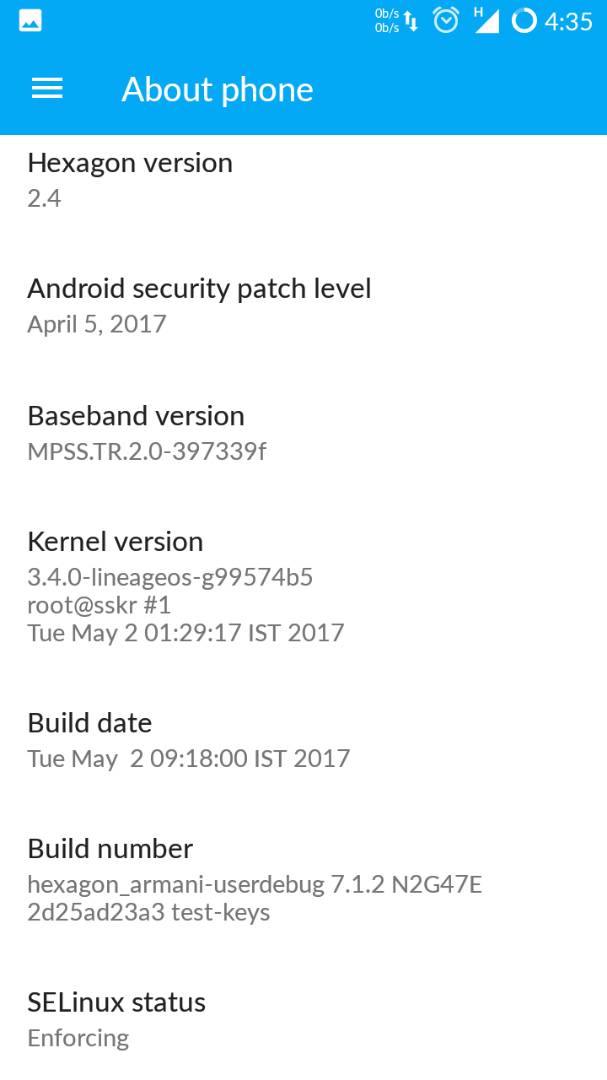
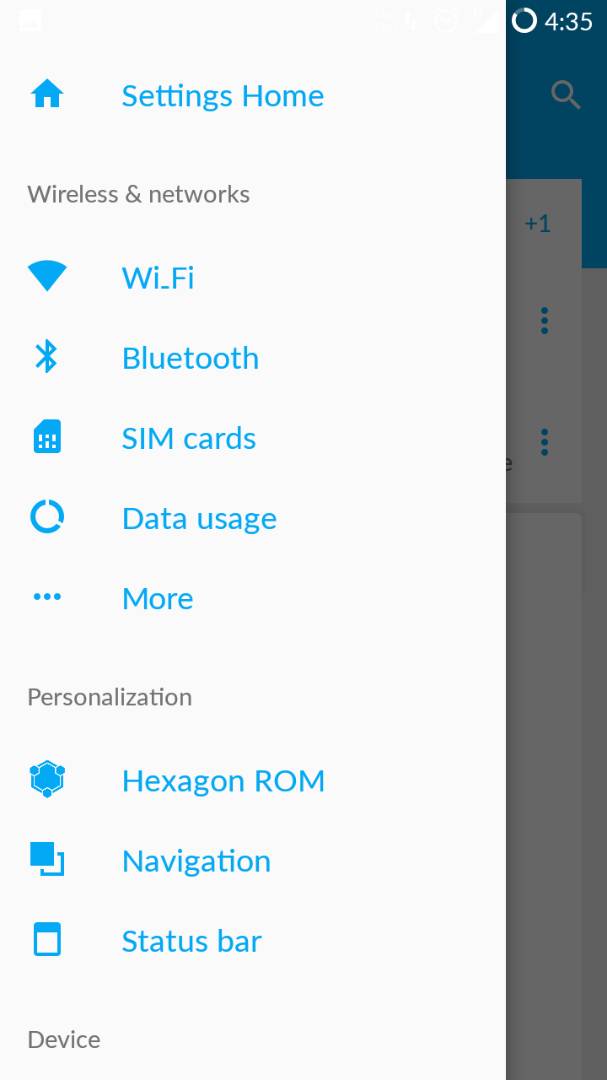
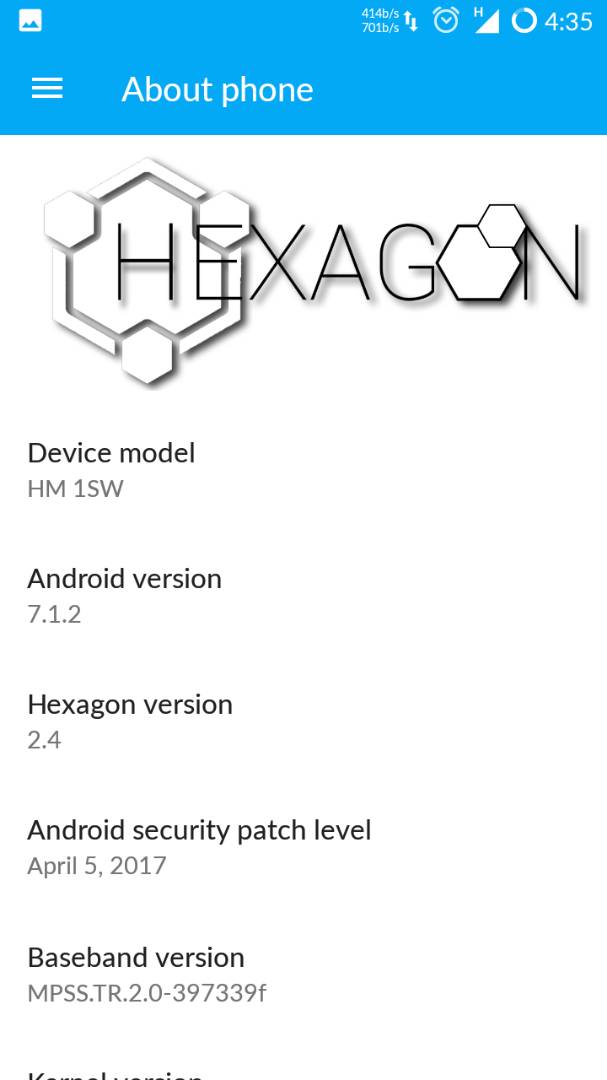
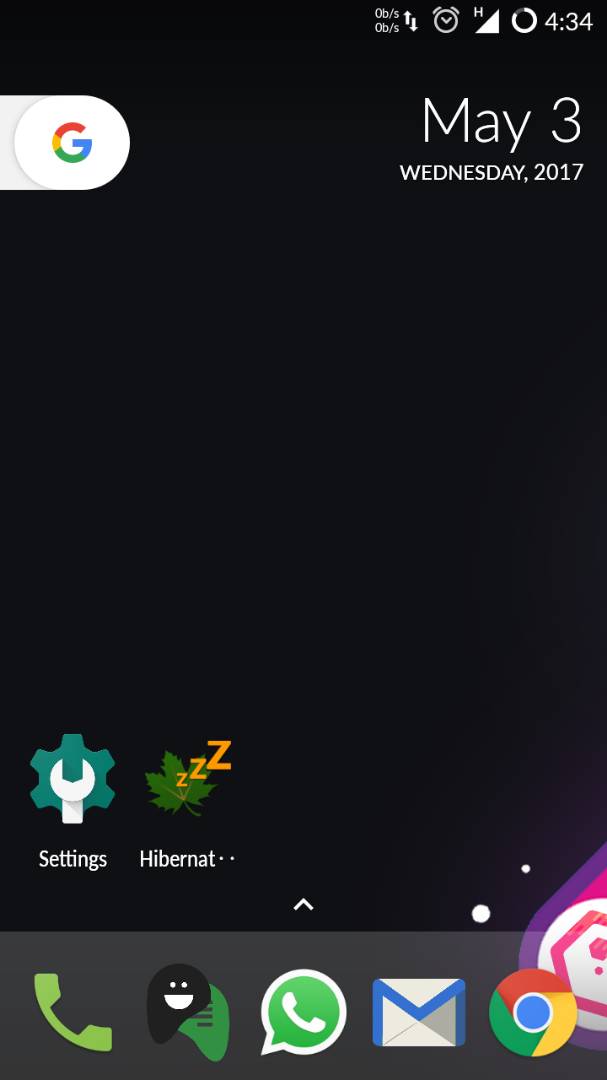
    Screenshots


    Downloading


    Credits


    List of All the Custom Roms for Xiaomi Redmi 1S

    Subscribe to our Mailing list for more Xiaomi Redmi 1 S Roms.


    Like Our Facebook Page for Development and Support about Xiaomi Redmi 1S


    Do share your reviews and queries about this ROM in the comments below.

    8 of the Best Email Apps for Apple iPhone and iOS Devices

    Email is an indispensable way of communicating in our everyday lives, which we use to work and play but your inbox can quickly become a hassle. Thankfully, there are many email applications that are designed to help you better manage your inbox. Some applications filter email based on conversations or popular contacts, while others filter out content based attachment types. Below are some of our favorite email apps for iOS, so you can increase your email productivity on your smartphone.


    1. Gmail

    If you use Google services, it is necessary for comparison to the official Gmail app. It supports multiple accounts. Gmail also has a feature called Smart Answer, which scans your email, and some populations suggest pre-populated responses

    ‎Gmail - Email by Google
    ‎Gmail - Email by Google
    Developer: Google LLC
    Price: Free+
    • ‎Gmail - Email by Google Screenshot
    • ‎Gmail - Email by Google Screenshot
    • ‎Gmail - Email by Google Screenshot
    • ‎Gmail - Email by Google Screenshot
    • ‎Gmail - Email by Google Screenshot
    • ‎Gmail - Email by Google Screenshot
    • ‎Gmail - Email by Google Screenshot
    • ‎Gmail - Email by Google Screenshot
    • ‎Gmail - Email by Google Screenshot
    • ‎Gmail - Email by Google Screenshot
    • ‎Gmail - Email by Google Screenshot
    • ‎Gmail - Email by Google Screenshot
    • ‎Gmail - Email by Google Screenshot
    • ‎Gmail - Email by Google Screenshot
    • ‎Gmail - Email by Google Screenshot
    • ‎Gmail - Email by Google Screenshot
    • ‎Gmail - Email by Google Screenshot
    • ‎Gmail - Email by Google Screenshot
    • ‎Gmail - Email by Google Screenshot
    • ‎Gmail - Email by Google Screenshot


    2. Spark

    I personally use spark for daily work. It supports a lot of features such as Smart Inbox which automatically detects that email is private, groups with notifications or newsletters and similar emails use dear slapping for easier batch processing. With just one glance, you can see that email is an important email or product announcement from a service that you have never used.


    3. Microsoft Outlook

    The Microsoft Outlook App for iPhones is amazing One of the best email apps currently available, Outlook provides many useful features as well as support for many types of accounts. Calendars and schedules are too much to stay above things made in Planner, setup is easy and once you are up and running then you will not go back

    ‎Microsoft Outlook
    ‎Microsoft Outlook
    • ‎Microsoft Outlook Screenshot
    • ‎Microsoft Outlook Screenshot
    • ‎Microsoft Outlook Screenshot
    • ‎Microsoft Outlook Screenshot
    • ‎Microsoft Outlook Screenshot
    • ‎Microsoft Outlook Screenshot
    • ‎Microsoft Outlook Screenshot
    • ‎Microsoft Outlook Screenshot
    • ‎Microsoft Outlook Screenshot
    • ‎Microsoft Outlook Screenshot
    • ‎Microsoft Outlook Screenshot
    • ‎Microsoft Outlook Screenshot
    • ‎Microsoft Outlook Screenshot
    • ‎Microsoft Outlook Screenshot
    • ‎Microsoft Outlook Screenshot


    4. Newton

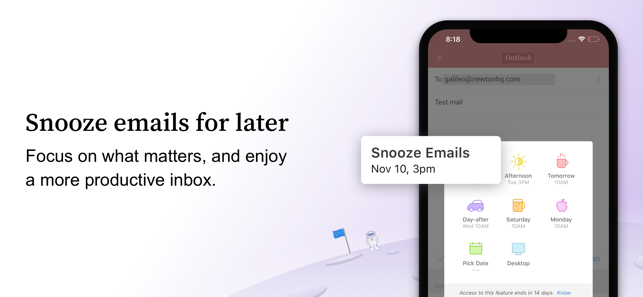
    Newton is a great mail app. In fact, if you love the mailbox by Dropbox, then it reminds me a lot of that app. I actually use it as my go-to-app for the past few weeks. It supports common features (snooze, push, etc.) which supports all other customers, but with a great design.

    This is a free app, but the 14-day free trial requires an annual subscription of $ 49.99 to use it.

    ‎Newton Mail - Email App
    ‎Newton Mail - Email App
    • ‎Newton Mail - Email App Screenshot
    • ‎Newton Mail - Email App Screenshot
    • ‎Newton Mail - Email App Screenshot
    • ‎Newton Mail - Email App Screenshot
    • ‎Newton Mail - Email App Screenshot
    • ‎Newton Mail - Email App Screenshot
    • ‎Newton Mail - Email App Screenshot
    • ‎Newton Mail - Email App Screenshot
    • ‎Newton Mail - Email App Screenshot
    • ‎Newton Mail - Email App Screenshot
    • ‎Newton Mail - Email App Screenshot
    • ‎Newton Mail - Email App Screenshot
    • ‎Newton Mail - Email App Screenshot
    • ‎Newton Mail - Email App Screenshot
    • ‎Newton Mail - Email App Screenshot
    • ‎Newton Mail - Email App Screenshot
    • ‎Newton Mail - Email App Screenshot
    • ‎Newton Mail - Email App Screenshot


    5. VMware Boxer

    Boxer is a great app that includes a built-in calendar and many integration with cloud services such as Dropbox, Box, Google Drive etc., and supports common account types (Google, Exchange, iCloud, etc.). It has big swipe action and solid bulk email management

    ‎Boxer - Workspace ONE
    ‎Boxer - Workspace ONE
    Developer: AirWatch, LLC
    Price: Free
    • ‎Boxer - Workspace ONE Screenshot
    • ‎Boxer - Workspace ONE Screenshot
    • ‎Boxer - Workspace ONE Screenshot
    • ‎Boxer - Workspace ONE Screenshot
    • ‎Boxer - Workspace ONE Screenshot
    • ‎Boxer - Workspace ONE Screenshot
    • ‎Boxer - Workspace ONE Screenshot
    • ‎Boxer - Workspace ONE Screenshot
    • ‎Boxer - Workspace ONE Screenshot
    • ‎Boxer - Workspace ONE Screenshot
    • ‎Boxer - Workspace ONE Screenshot
    • ‎Boxer - Workspace ONE Screenshot
    • ‎Boxer - Workspace ONE Screenshot
    • ‎Boxer - Workspace ONE Screenshot
    • ‎Boxer - Workspace ONE Screenshot
    • ‎Boxer - Workspace ONE Screenshot


    6. Dispatch

    Dispatch is a great app and has great integration with other apps, though it does not have true push notifications support and exchange accounts (and there is no plan to add it, so for many people who will be show-stupas.) Otherwise, It’s actually a great app that works on both iPhone and iPad. Currently $ 6.99 on the App Store

    ‎Dispatch: Email meets GTD
    ‎Dispatch: Email meets GTD
    • ‎Dispatch: Email meets GTD Screenshot
    • ‎Dispatch: Email meets GTD Screenshot
    • ‎Dispatch: Email meets GTD Screenshot
    • ‎Dispatch: Email meets GTD Screenshot
    • ‎Dispatch: Email meets GTD Screenshot
    • ‎Dispatch: Email meets GTD Screenshot
    • ‎Dispatch: Email meets GTD Screenshot


    7. Inky – Secure Email

    InkyMail is one of the unique email systems I looked at. A unique feature is how it can sort your email in various ways. It can filter out any kind of newsletters, social notifications, and other types of fluff that can distract you from handling the more important emails. The app is free for basic use, but it requires a $5 per month subscription if you want Exchange support.

    The app was not found in the store. 🙁


    8. myMail

    myMail works with Gmail, Hotmail, Live, Outlook, Yahoo, MSN, iCloud and AOL email accounts. I like it because it’s got an extremely streamlined interface, which makes getting to that email you want to read really clear cut. But the best thing about myMail is that the app automatically pulls images and logos of email senders so you can see who is sending you the message instead of just staring at a few capital letters in agrayy circle.


    How do you like this article? Do share your views in the comments below.

    Official Android 7.1 Nougat Update for Yu Yureka Black (Firmware)

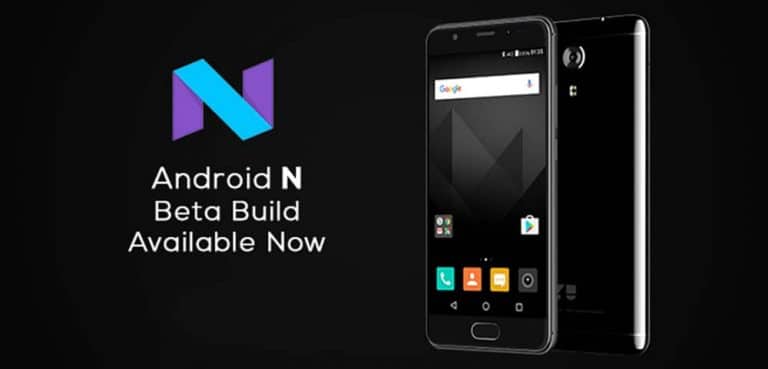
    Official Android 7.1 Nougat Firmware for Yu Yureka Black (YU5040, Garlic)


    Official Android 7.1.2 Nougat Firmware


    You Might Like:


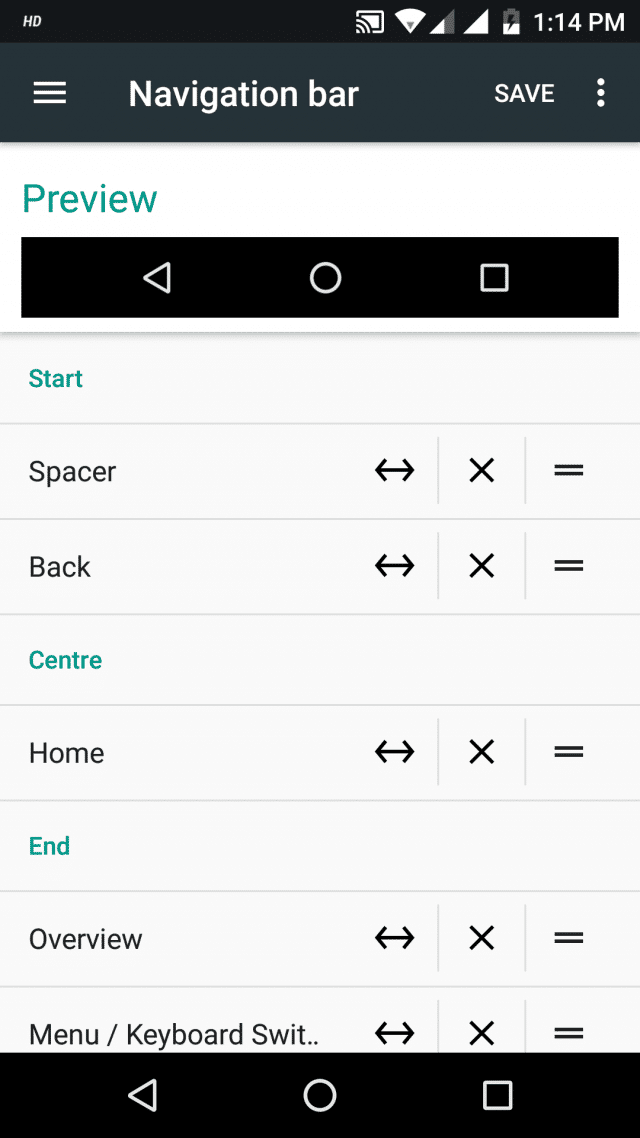
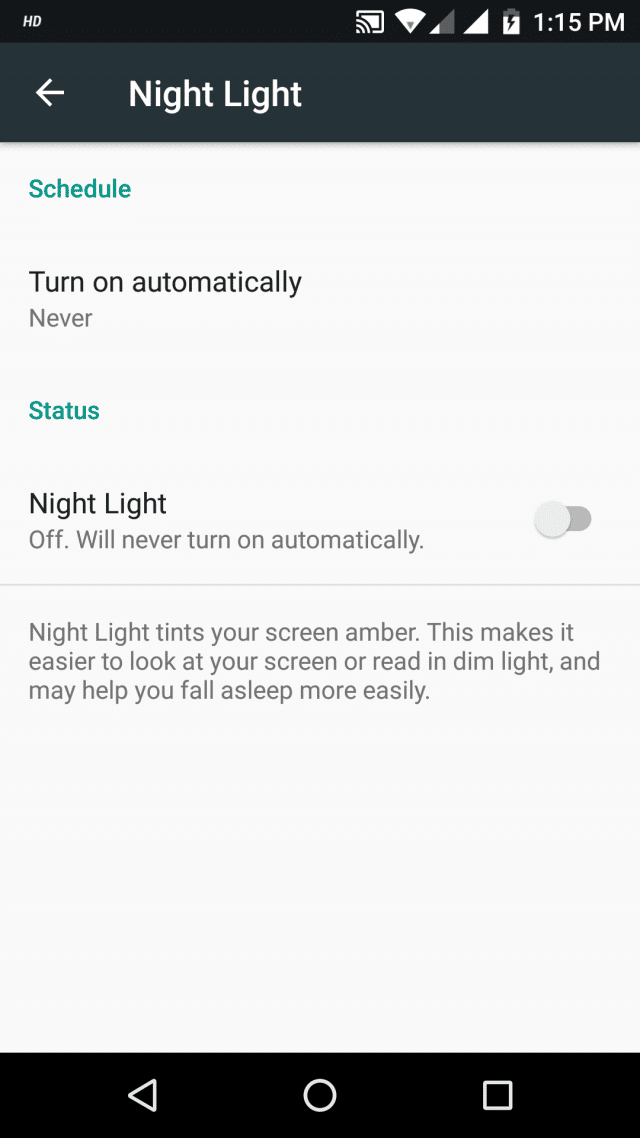
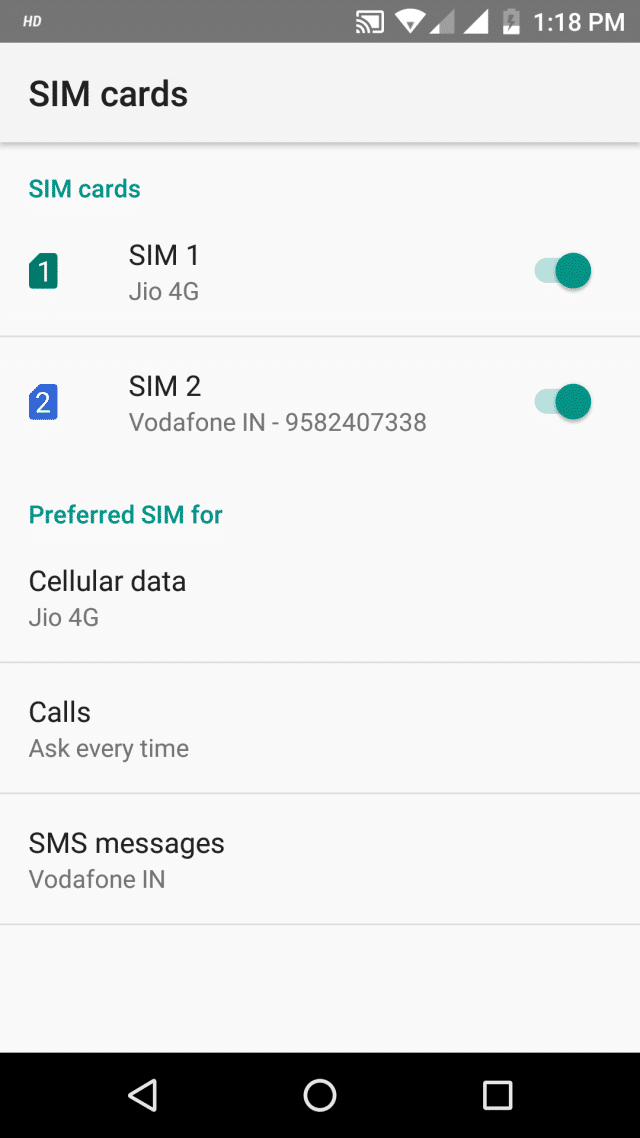
    Screenshots


    Installation Instructions

    Requirements:
    1. Yu Yureka Black Smartphone
    2. Download USB Drivers from the download section below. Download and Install them on your Windows Machine.
    3. ADB & Fastboot Drivers Installed In your Machine, Download them from the download section below.
    4. Unlocked Bootloader: Refer here for Unlocking the Bootloader
    5. Download TWRP Recovery for your device, see the download section below.
    6. Download Gapps zip from the download section below.
    7. Download Android 7.1.2 Nougat Beta Build Firmware Package for Yureka Black from the download section below.
     
    Installation:
     

    Step 1: Extract the downloaded Firmware Package In your machine.

    Step 2: Connect your device in ADB Interface & from CMD run below command to enter Fastboot Mode.

    adb reboot bootloader

    Step3: Once Device is in booted in fastboot mode verify availability of the device in fastboot mode by running the below command in cmd.

    fastboot devices

    Step 4: Make sure your bootloader in unlocked, if not refer here for Unlocking Bootloader.

    Step 5: Navigate to extracted firmware folder YU5040_SW_V-DEV-PREW-01_HW_V01_20170531If host OS of your Machine is

    Step 6: Run flash-windows.bat from Windows Machine and if you are on Linux /Ubuntu then run flash-linux.sh.Once

    Step 7: It will install the firmware and your device will reboot automatically upon completion. Once the device is booted up reboot it again into fastboot mode.

    Step 8: Now run the below command from cmd in fastboot mode to boot using TWRP Recovery.

    fastboot boot /path/of/your/Twrp_image.img

    Step 9: Install Gapps by running the below command from cmd in fastboot mode.

    adb sideload /path/of/your/open_gapps.zip

    Step 10: Once installation of Gapps is done make a factory reset of your device and reboot.

     
    That’s it, this completes the Installation of Android Nougat-7.1.2 Developer Preview on your Yureka Black.


    Downloads


    Credits

    • Yu Team
    • AudioGod


    Leave you feedbacks in the comments below, if you like this article then don’t forget to bookmark us and do share it with your friends.

    LineageOS for Yu Yureka Black {Custom ROM} {How to Install}

    How to Install LineageOS in Yu Yureka Black (Custom ROM For Yu5040 Garlic)


    LineageOS For Yu Yureka Black

    LineageOS is a free, community built, aftermarket firmware distribution of Android 7.1 (Nougat), which is designed to increase performance and reliability over stock Android for your device.

    LineageOS is based on the Android Open Source Project with extra contributions from many people within the Android community. It can be used without any need to have any Google application installed. Linked below is a package that has come from another Android project that restores the Google parts. LineageOS does still include various hardware-specific code, which is also slowly being open-sourced anyway.


    Lineage OS Banner Logo


    Installation Instructions

    Note: Make sure to take a backup of important files, photos, contacts etc. as installing a custom ROM resets your phone and we are not responsible for any data loss ar damage to your system.

    Step 1: Make sure your phone is charged and all your data is backed up.

    Step 2: Download the latest version of ROM and Gapps from the Download Section below and place both the files in your SD Card or Internal Storage.

    Step 3: Now boot into the Recovery mode, We recommend using the TWP Recovery. If you haven’t installed the TWRP Recovery then follow this guide to do so.

    Step 4: Next in TWRP Recovery do a System Wipe along with Data, Cache, and Dalvik Cache.

    Step 5: Now Select the latest version of the rom file and flash it after that flash the Gapps file.

    Step 6: Wait for the installation to complete after that reboot your device to boot into the freshly installed ROM.


    What’s Working:

    • Boots
    • RIL (Calls, SMS, Data)
    • Wifi
    • Bluetooth
    • Camera ( Videos And Photos )
    • Video Playback
    • Audio ( Record and Playback )
    • Sensors
    • Flash
    • Led
    • GPS


    What’s not working:

    • Goodix fingerprint scanner


    Download


    Credits

    • Sanyam Jain
    • Pranav Reddy
    • Louis Popi
    • YU for providing me the device
    • Lineage Team


    If you any queries or suggestings then don’t forget to leave them in the comments below.

    Top 10 Productive Apps for Students to Use in 2017

    The arrival of iPhones, iOS, Android devices and other computing devices has made things extremely easier. Now, you can look for all your solutions through these devices in the form of applications.

    It is not always possible for the students to attend tuition classes. They can also look into the apps to find answers to their questions. In case, you have your queries and you want solutions to them, particularly when you have missed the class, you can certainly consider these apps to obtain the results. Also, practice is an essential segment of any academic, and you can even find tuition assignments through these apps. These apps are too useful for any student and assist in building their career.

    Some popular apps for students to use in 2017:

    1. Coursera

    Coursera: Learn career skills
    Coursera: Learn career skills

    This app connects professionals, students as well as lifelong learners from all across the globe. It offers free online courses from different global universities, educational institutions, etc. Users can choose to browse courses and view lectures from the instructors anywhere and at any time.


    2. Studious

    Studious
    Studious
    Developer: Leslie Lay
    Price: Free

    This app is really helpful if you have a tendency to forget about your assignments. This app reminds you regarding your approaching tests and assignments that are due.


    3. Calcu

    The idea of a calculator app is not much exciting when you already own a default application in your device. Yet, this app is still popular among the users for its sleek design. It is not only known for its amazing aesthetics but also consists of different scientific functions. The app also offers a calculation history.


    4. Wunderlist

    It offers a minimalistic design and is quite clean, thereby standing out of all other calendar apps. This app helps you maintain your regular schedule and will keep on notifying you about your tasks-to-do. You can all access it as your Home screen widget.


    5. Evernote

    This is a free application that assists you to stay organized as well as remain productive all the while. You can take notes and create your to-do lists with this app. You may also choose to capture photos and record voice reminders with this app.


    6. AnkiDroid Flashcards

    Just as the name of the app reveals, this helps users to create flashcards. It is an amazing study tool that allows users to memorise complex phrases and words. You can also use it while studying a second language. It comes with a user-friendly interface that is quite easy to use. It is considered as one of the best apps for students.


    7. Google Drive

    Google Drive
    Google Drive
    Developer: Google LLC
    Price: Free

    This suite is basically a powerful collection of college applications. It consists of Google sheets, docs, slides and more. It also allows the users to take voice, text as well as photo notes by accessing Google keep. Moreover, you can enjoy all the facilities altogether since they will all be tied up with your single Google account. It is absolutely helpful for group projects and the complete set of such collaborative tools make your tasks easier.


    8. Lecture Notes

    LectureNotes
    LectureNotes
    Developer: Acadoid Developer
    Price: $5.99

    This is regarded as one of the best college apps for students. This is probably because the app consists of a note taking an interface and you can actually draw it on. It also lets you attach images from the device’s camera as well as record lectures in the form of audio and video format, whichever way you like. It also arranges the pages of your notebook to provide you with an easier and organized facility.


    9. Microsoft Office 365 Education
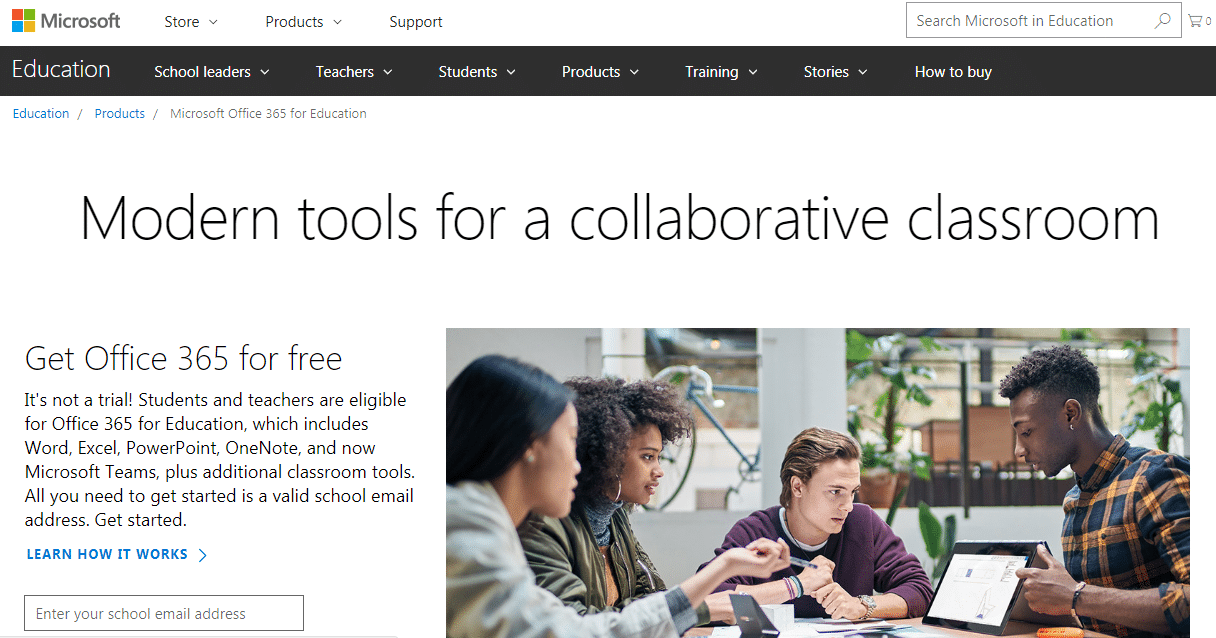
    Certainly, Microsoft provides a wide number of college apps for students. This app helps you access Microsoft Word, Powerpoint, Excel, One Note and more in collaboration. Thus, you can work on projects with your fellow mates. All you need is to enter a valid Email address and you will be allowed to sign up.


    10. Scribd

    Scribd: Audiobooks & Ebooks
    Scribd: Audiobooks & Ebooks
    Developer: Scribd, Inc.
    Price: Free

    It is a valuable resource for students that provide a large collection of e-books, audiobooks along with countless academic dissertations. It also offers prominent articles and news resources, government reports and scientific studies, etc to help you stay updated with the latest information.

    Students can check their exam updates, Result in notifications in indiaresulup.in

    “If you are looking for apps for your younger kids, check out these 5 learning apps.” linking to our editorial article “https://smiletutor.sg/5-must-have-learning-apps-for-primary-school-students/

    All these apps are potentially valuable to students!

    How to Install Custom ROM in Yu Yureka Black (FireHound OS)

    How to Install a Custom ROM in Yu Yureka Black (Garlic – YU5040) – Fire Hound OS


    Official FireHound OS


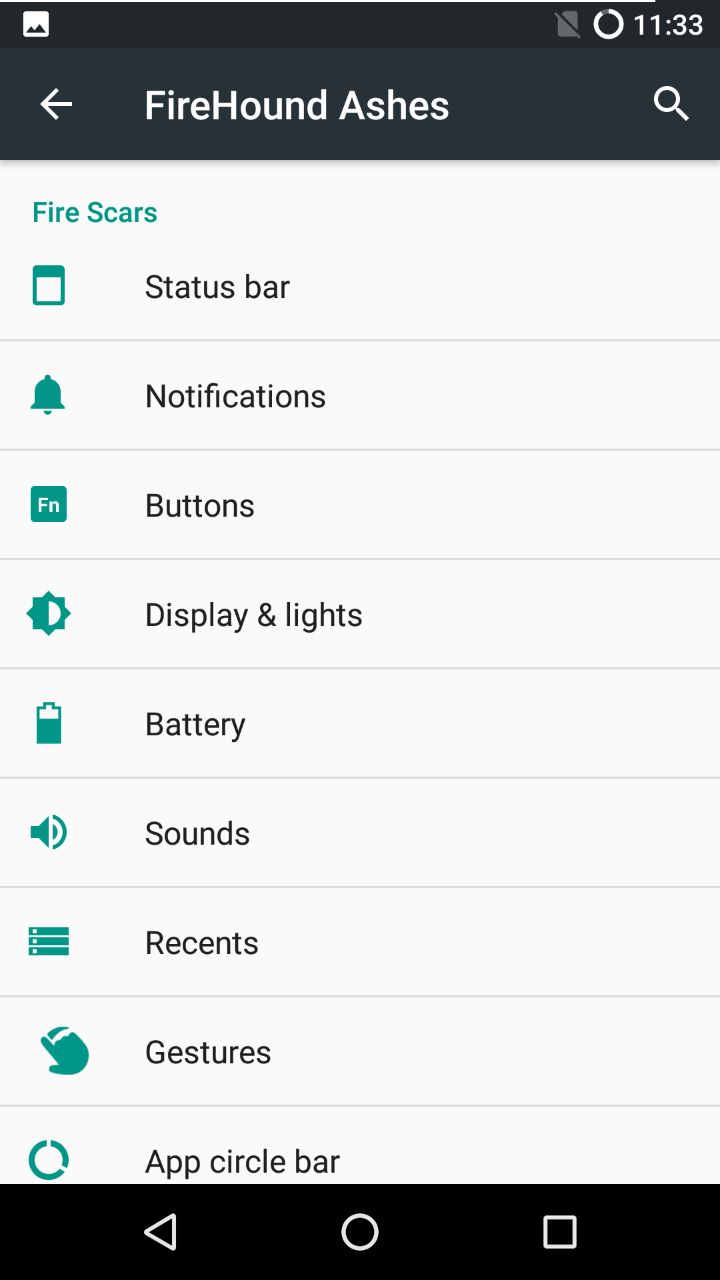
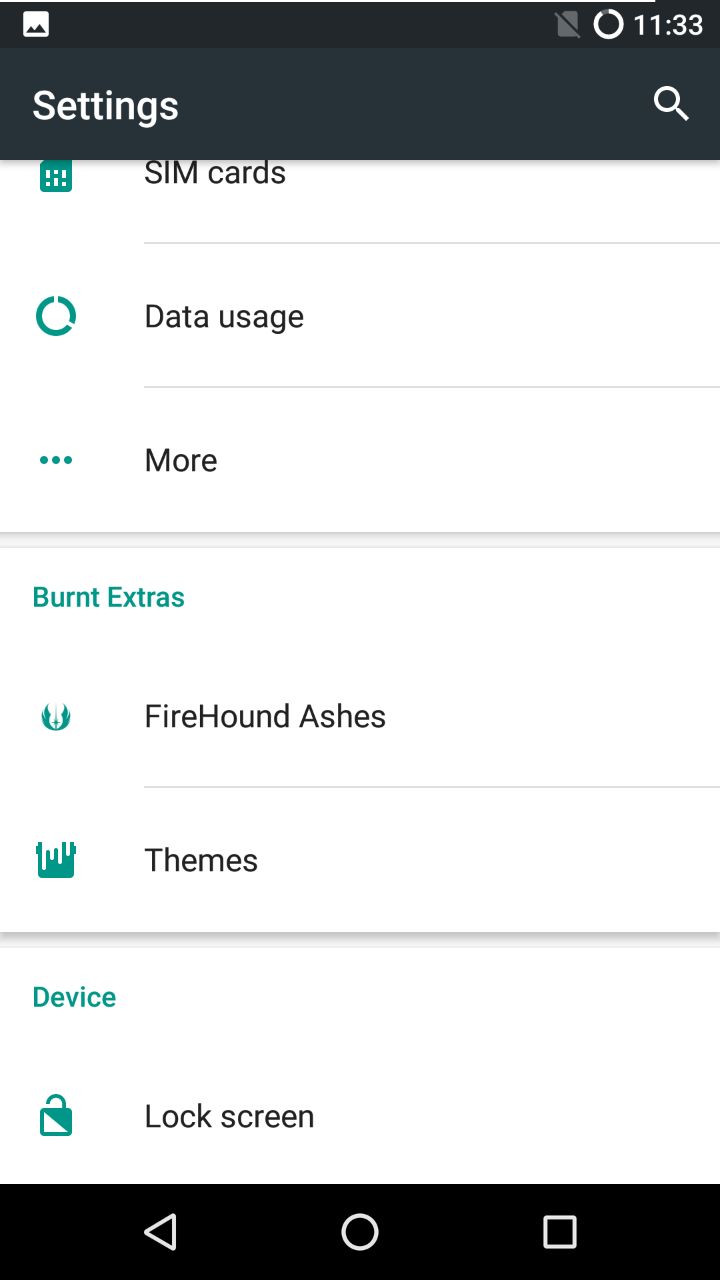
    FireHound is a Custom ROM developed focusing on Stability + Features. FireHound is made from cherry-picking commits from many great ROMs. Their main goal is to satisfy users as best as possible and to raise a community. 

    FireHound OS Logo


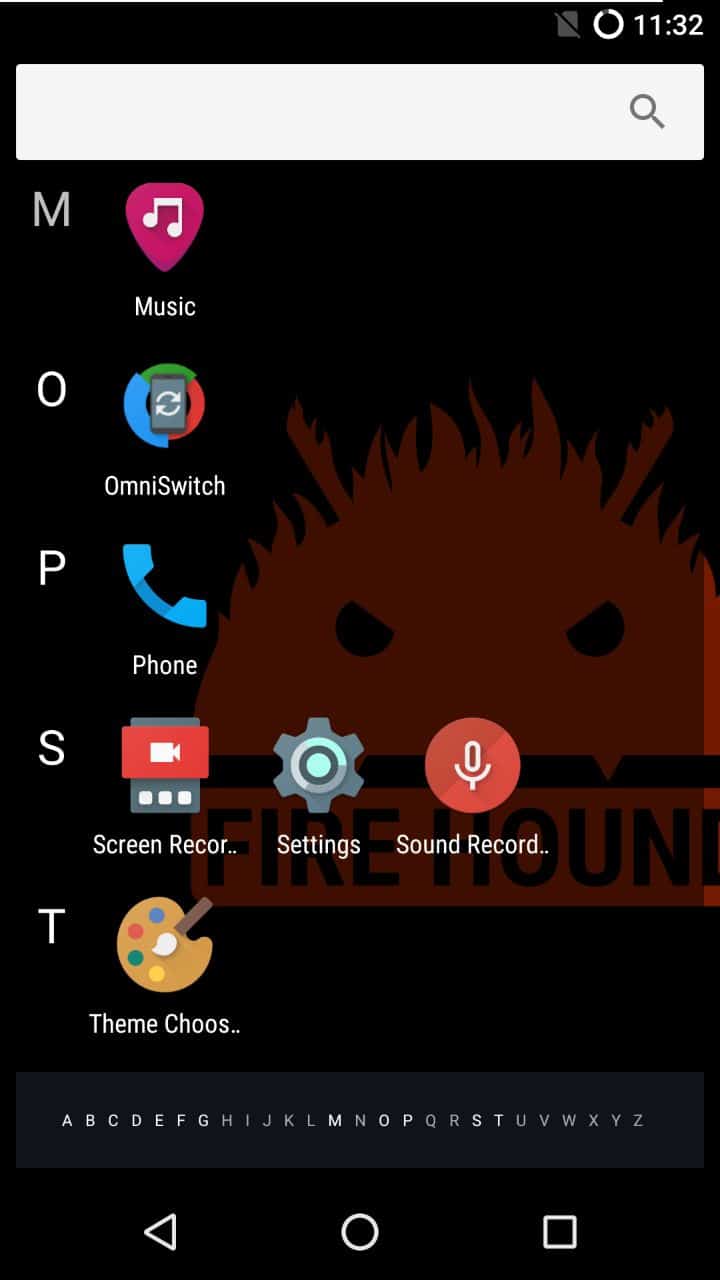
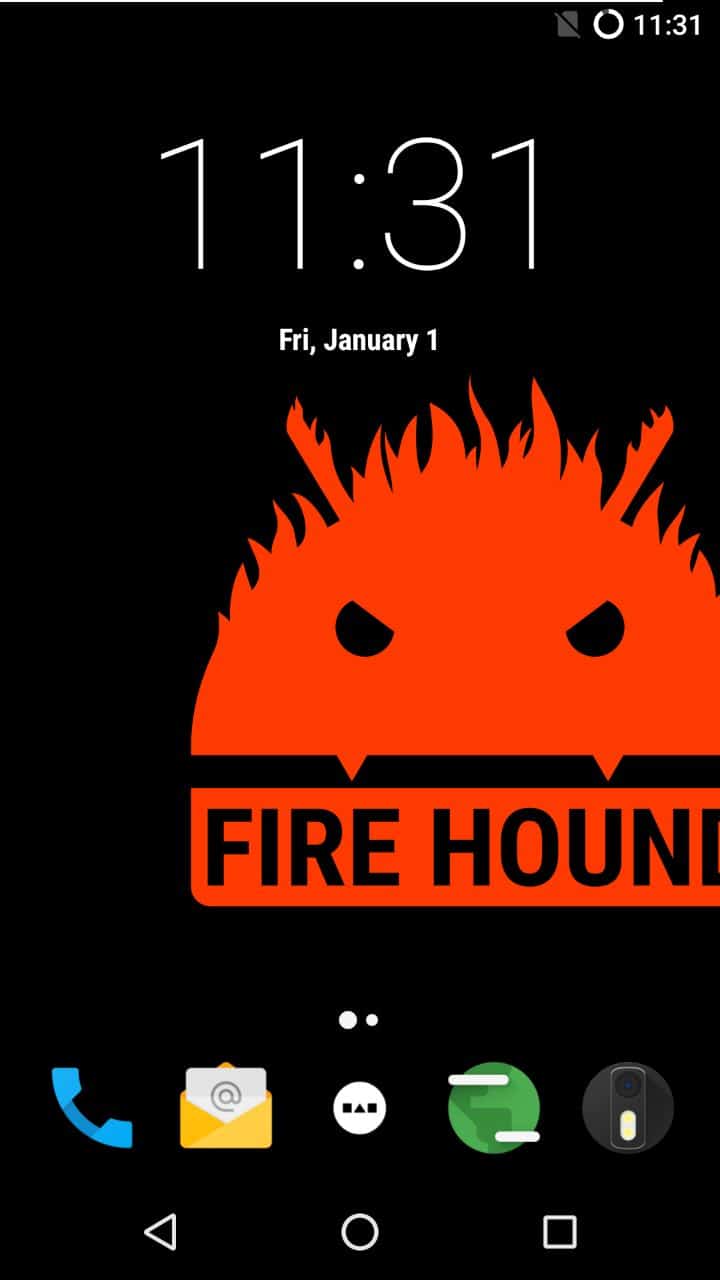
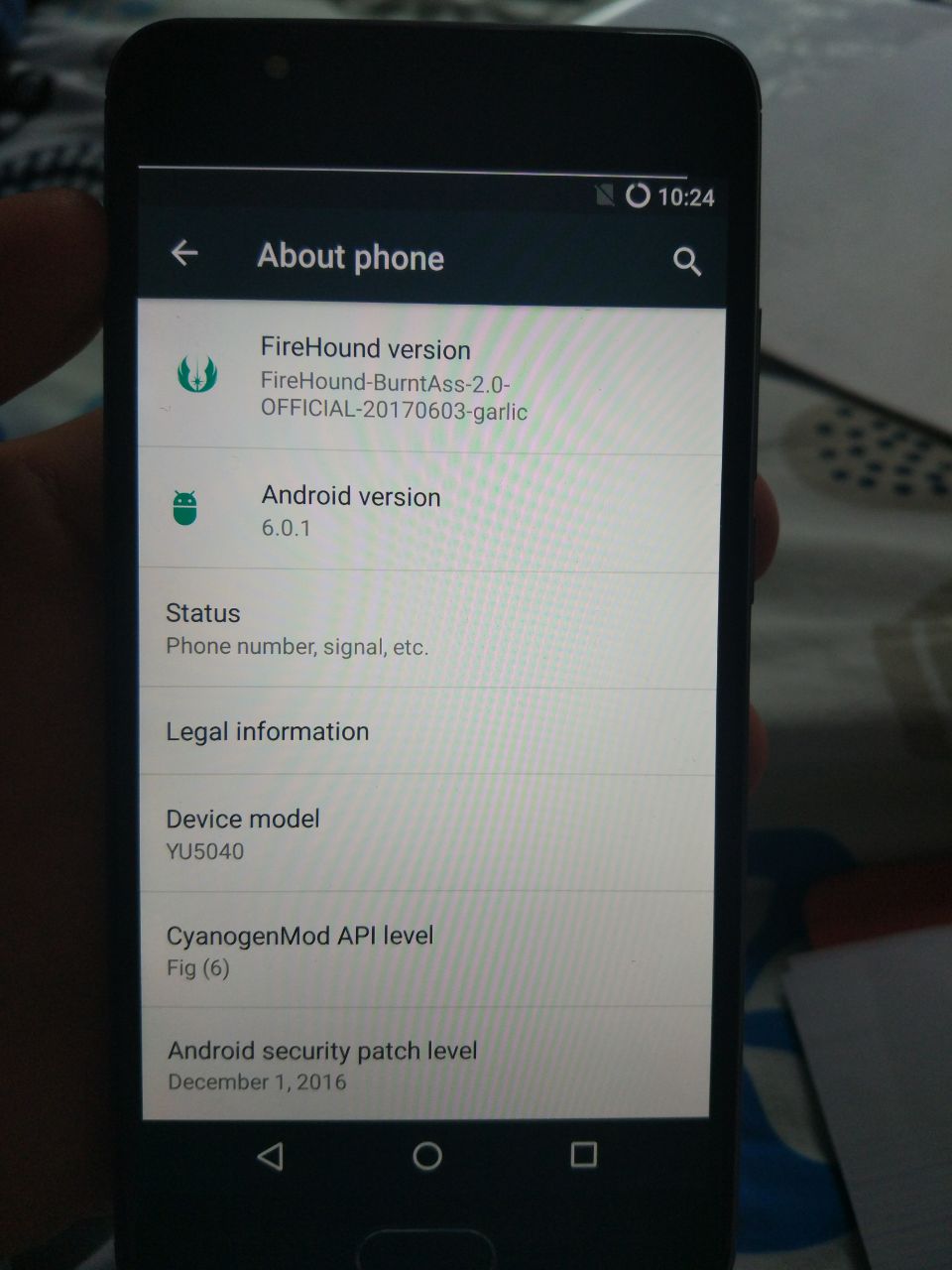
    ROM Screenshots


    Installation Instructions

    Note: Make sure to take a backup of important files, photos, contacts etc. as installing a custom ROM resets your phone and we are not responsible for any data loss ar damage to your system.

    Step 1: Make sure your phone is charged and all your data is backed up.

    Step 2: Download the latest version of ROM and Gapps from the Download Section below and place both the files in your SD Card or Internal Storage.

    Step 3: Now boot into the Recovery mode, We recommend using the TWP Recovery. If you haven’t installed the TWRP Recovery then follow this guide to do so.

    Step 4: Next in TWRP Recovery do a System Wipe along with Data, Cache, and Dalvik Cache.

    Step 5: Now Select the latest version of the rom file and flash it after that flash the Gapps file.

    Step 6: Wait for the installation to complete after that reboot your device to boot into the freshly installed ROM.


    Download


    If you any queries or suggestings then don’t forget to leave them in the comments below.

    Update Xiaomi Redmi Note 4 to Official Android 7.1 Nougat

    Android 7.1 Nougat Update for Xiaomi Redmi Note 4 with AOSP Extended Custom ROM


    Official AOSP Extended

    Android Nougat Based Stable Rom for Xiaomi Redmi Note 4

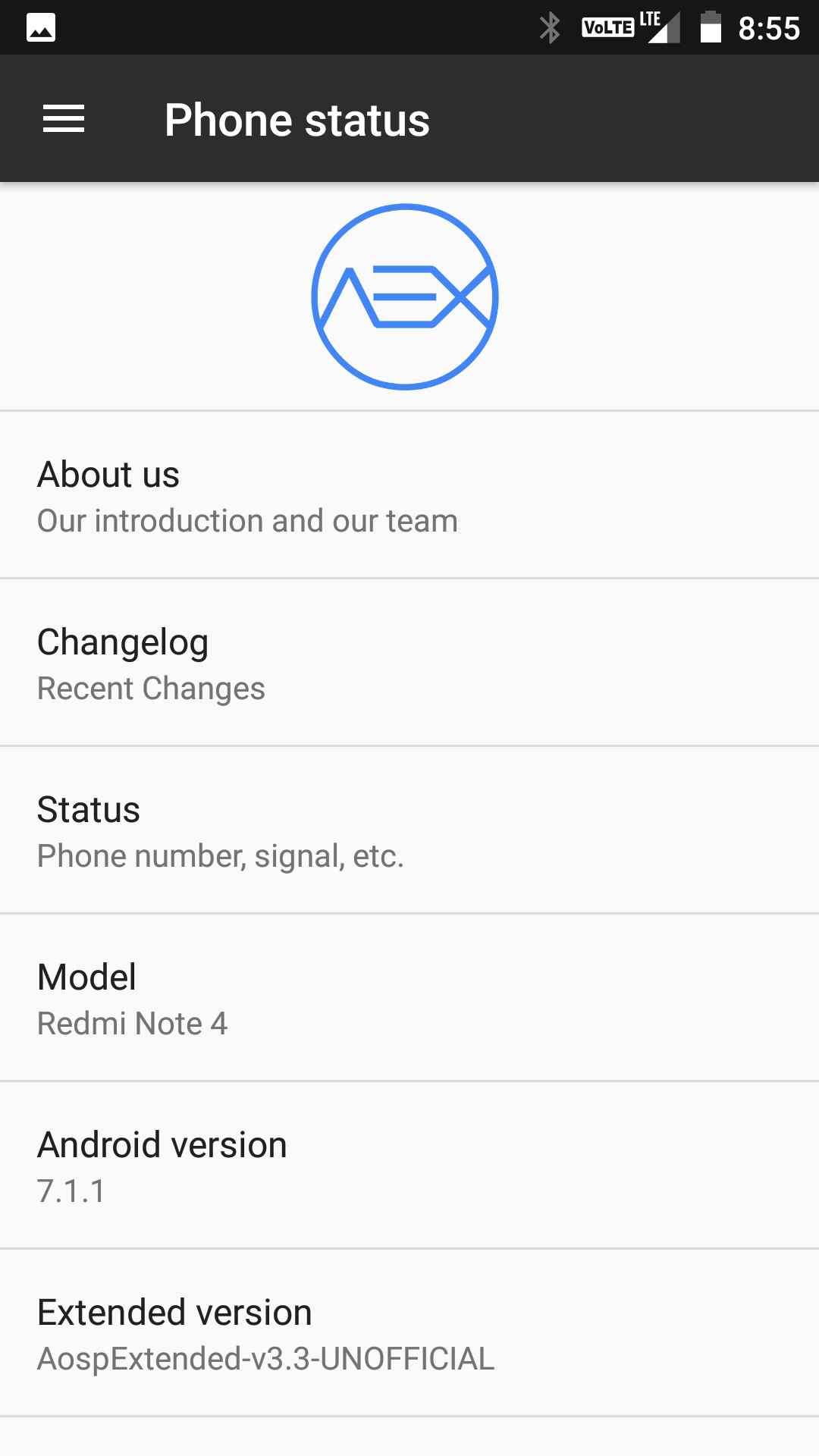
    AOSP Extended is an AOSP based ROM which provides stock UI/UX with various customisations features along with the Substratum theme engine. The project has been made by cherry-picking various commits from various other projects. Being based on AOSP it provides a smooth and lag-free experience out of the box.  A ROM by a user, for a user.


    AOSP Extended Android 7.1 Nougat ROM


    You Might Like:


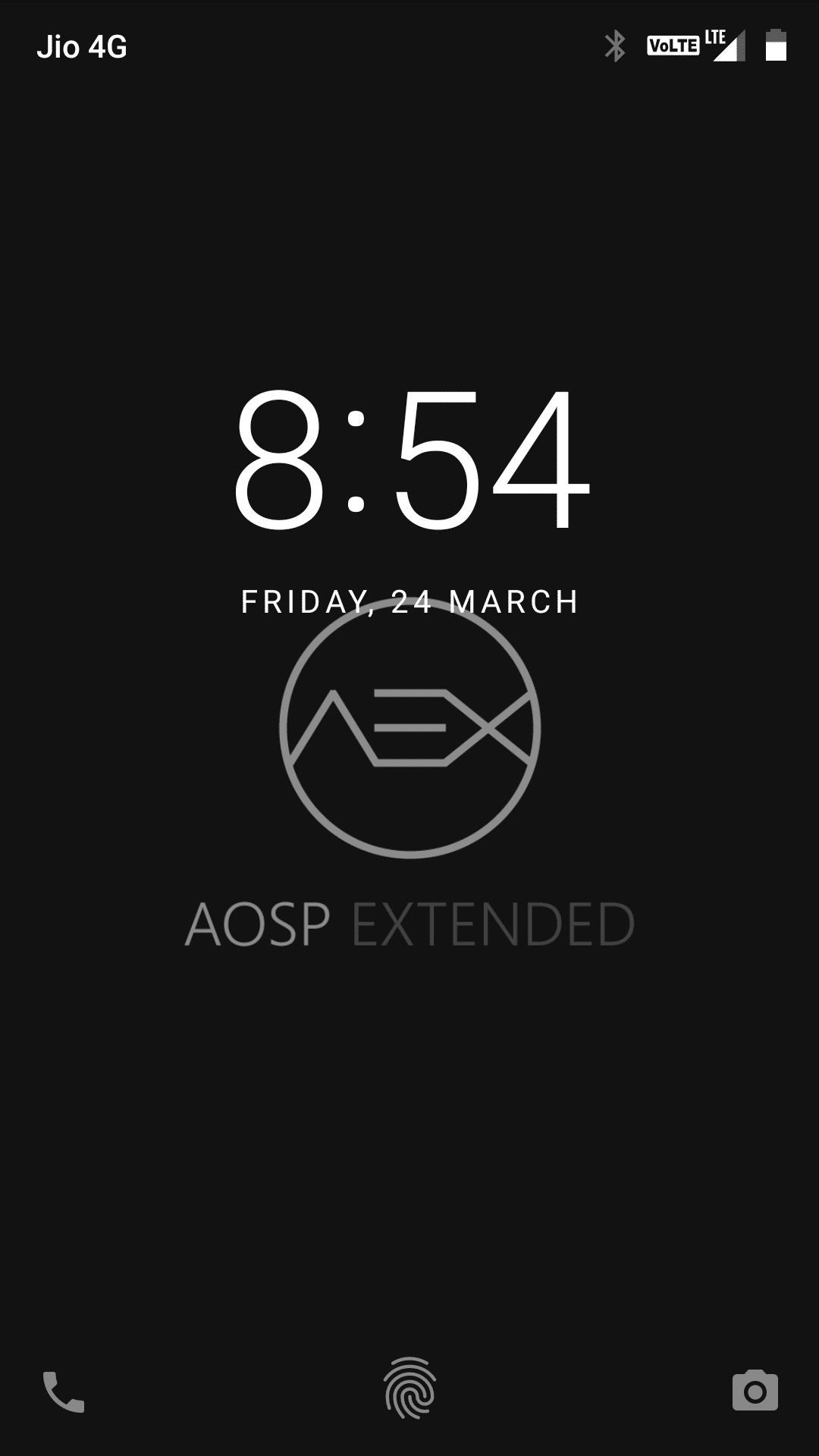
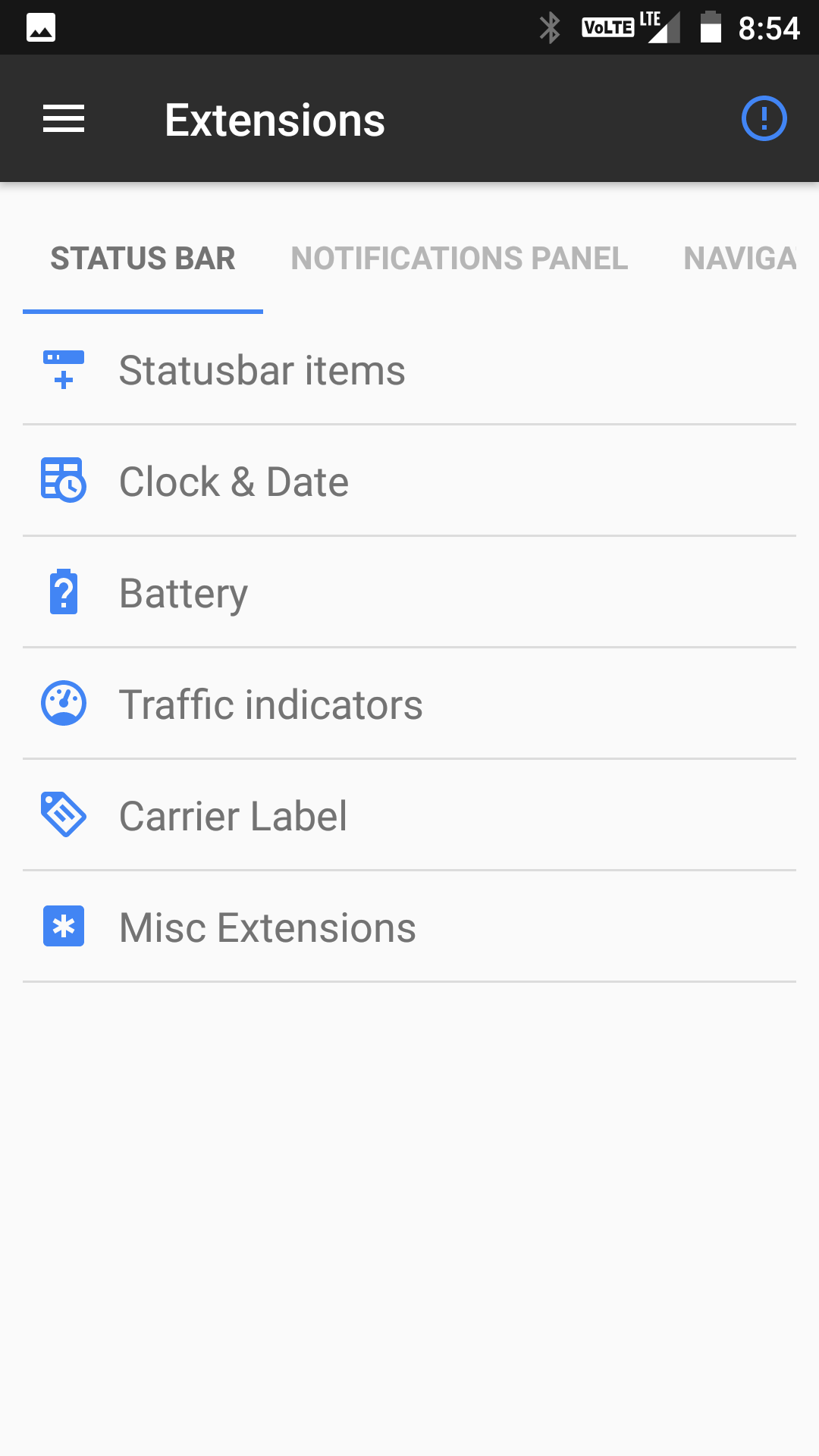
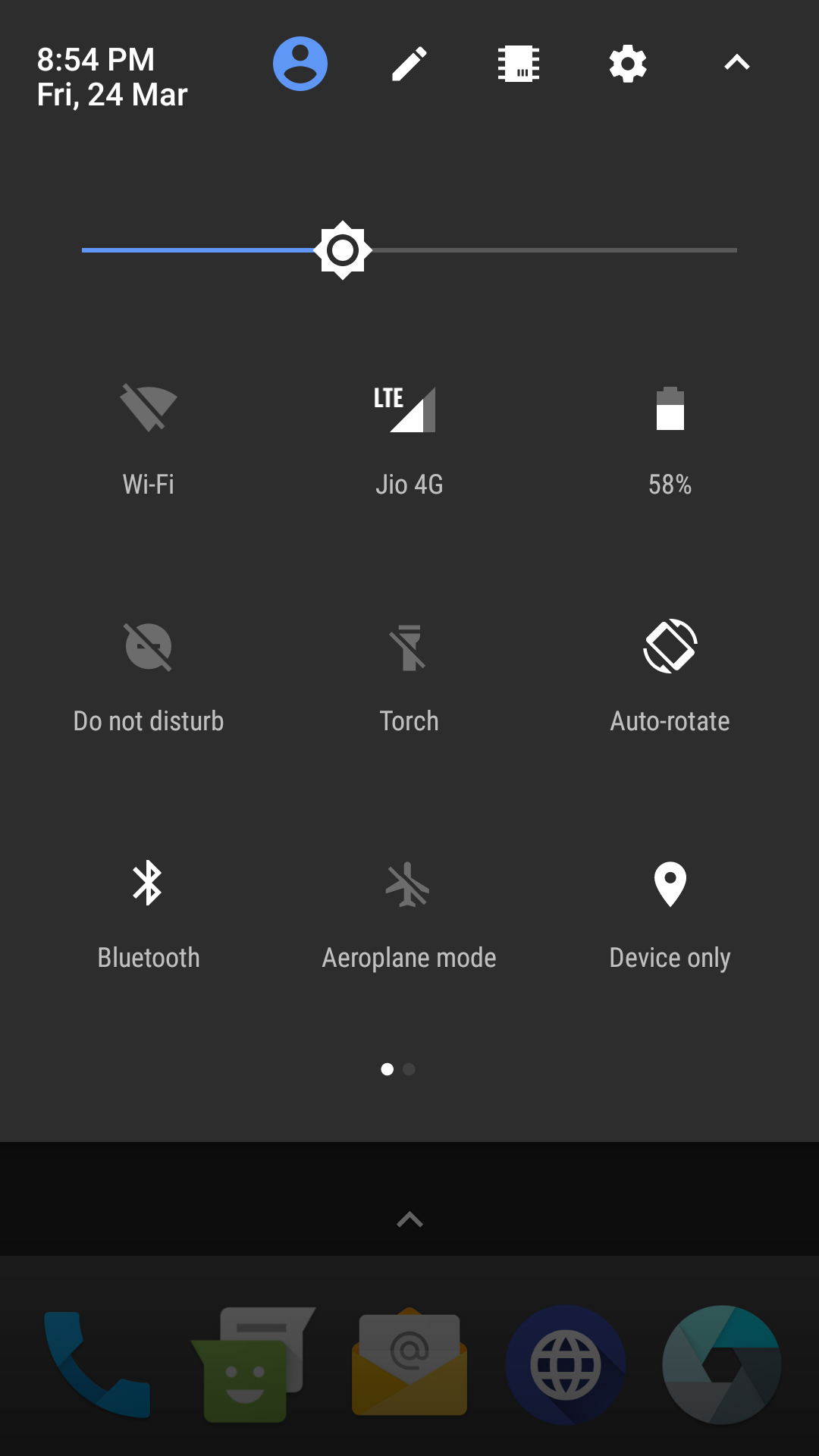
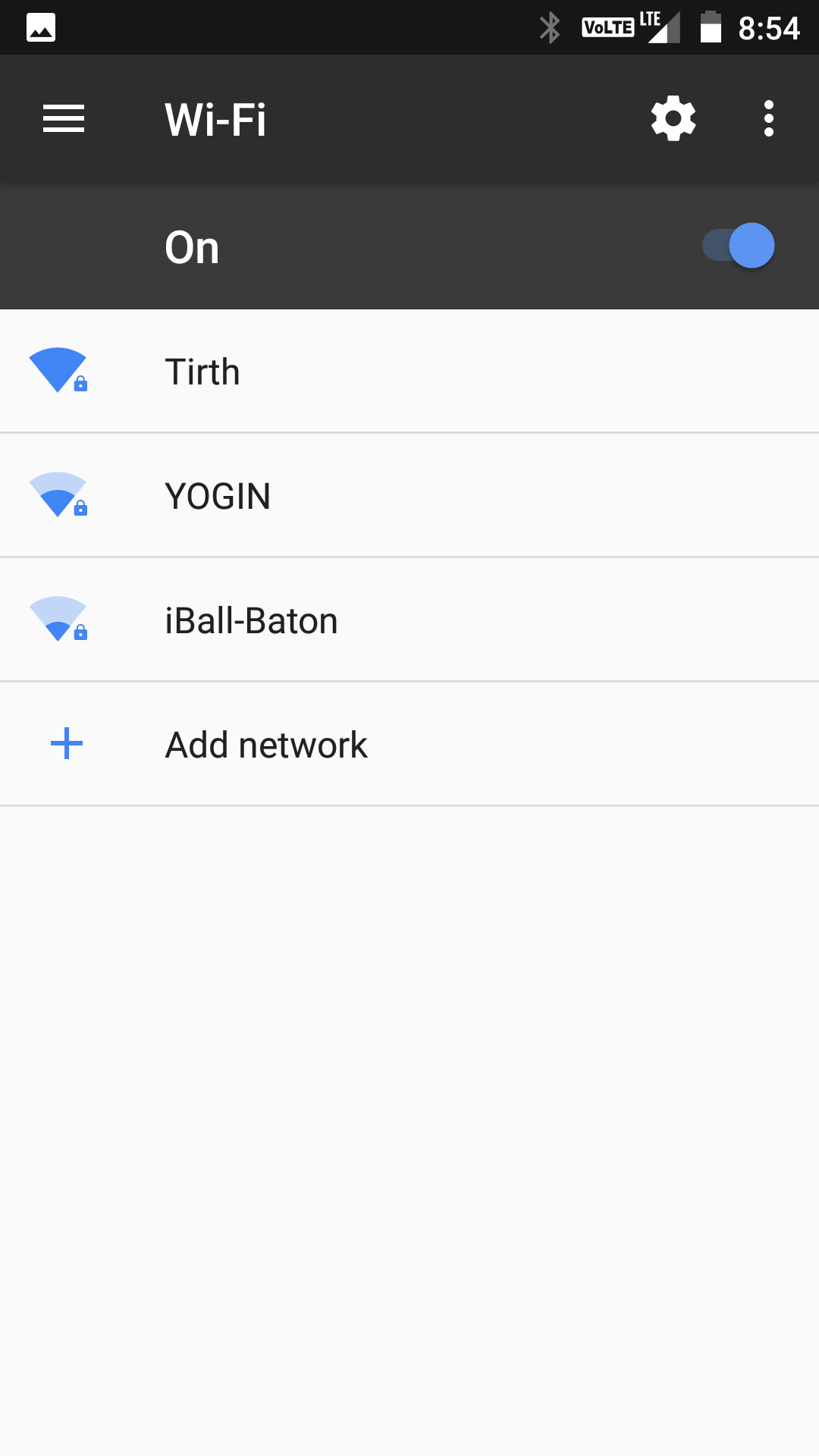
    Screenshots:


    Installation Instructions

    WARNING: This procedure will factory reset your device! Accounts, applications, settings, contacts, etc will be lost, so make sure to backup them before going further!

    Step 1: First make sure that you have flashed TWRP Recovery.

    Step 2: Download the file Rom zip file from the download section below to and place it on your phone.

    Step 3: Next Download the file OpenGApps for ARM64  to your phone from the links below.

    Step 4: Now reboot your device into Recovery mode by holding Power button with Volume Up + Volume Down button simultaneously.

    Step 5: In Recovery mode first format user data, cache and Dalvik cache and do a factory reset.

    Step 6: After that choose to Install and install the firmware first followed by both the ROM and the GApps zip files.

    Step 7: After the process completes reboot your device.


    That’s it, first boot will take time after that choose your language and complete the setup process.


    Downloading


    Credits


    Subscribe to our Mailing list for more Xiaomi Redmi Note 4 Roms.


    Share your experience with this ROM in the comment section below