Eufy makes excellent cameras with local storage and no monthly fees, but there’s a catch every new owner hits within the first week: there is no official Eufy desktop app. Unlike Reolink or TP-Link’s Tapo lineup, Anker’s Eufy team never shipped a Windows or Mac client. That doesn’t mean you’re stuck squinting at your phone, though — there are three workable ways to get Eufy feeds onto a bigger screen, and one of them even works with professional NVR software.
Method 1 — The Official Web Portal (Simplest)
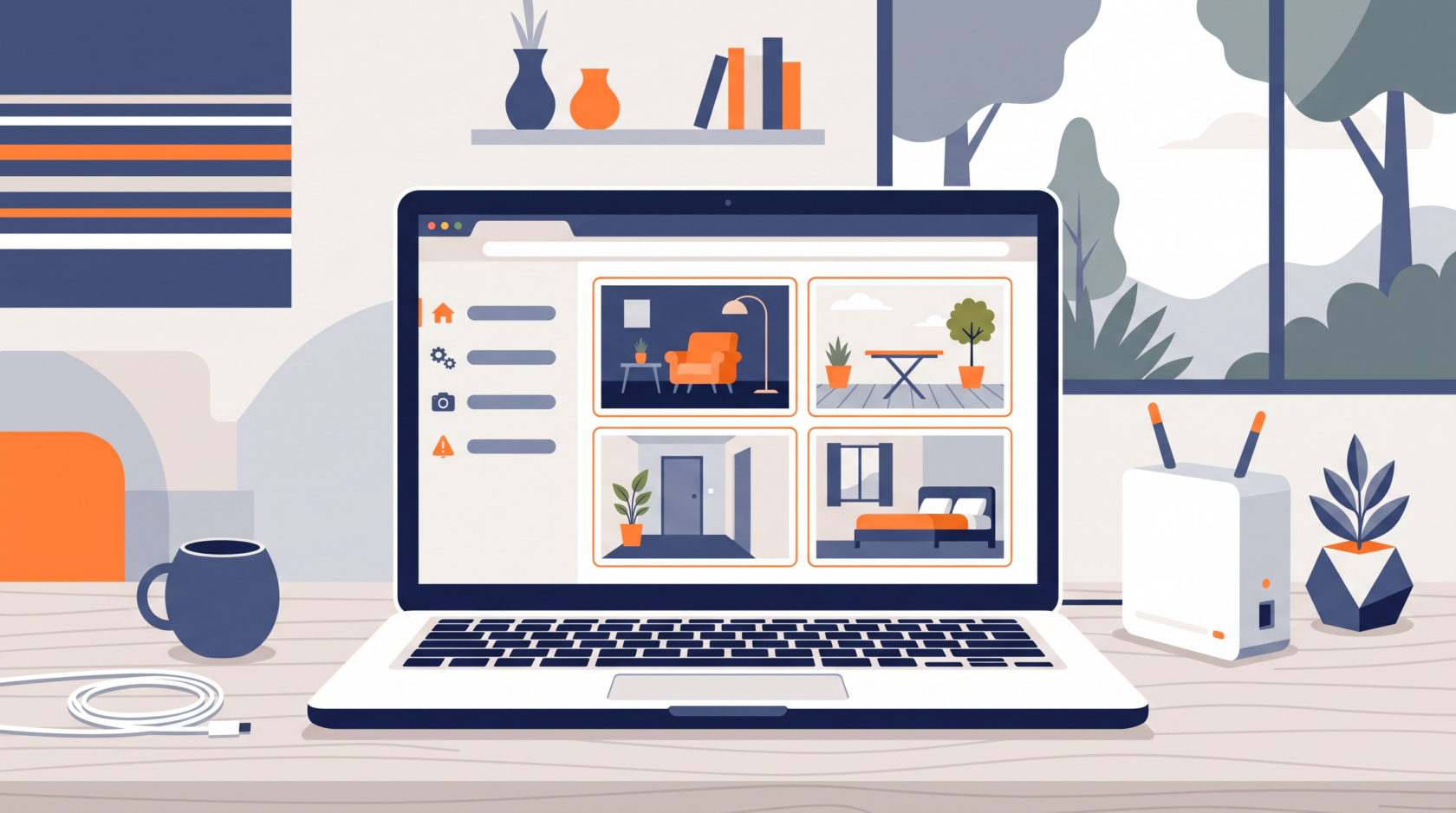
Eufy’s web portal at mysecurity.eufy.com is the company’s only sanctioned way to view cameras on a computer. Sign in with the same account you use in the phone app and your devices appear in a browser dashboard.
What works: live view, two-way audio on supported models, and event playback from cloud or local storage. What doesn’t: it’s dependent on Eufy’s servers relaying your stream, so expect a second or two more latency than a direct LAN connection, and if Eufy’s cloud has an outage day, your portal access goes with it. It also requires an active internet connection even when you’re sitting at home on the same network as the cameras.
For occasional checks it’s perfectly fine. For a monitor-wall setup or 24/7 viewing, read on.
Method 2 — Android Emulator (Full App Experience)
Since the Eufy Security app is Android software, running it inside an emulator like BlueStacks 5 gives you the complete mobile experience — push notifications, settings, firmware updates, everything.
- Install BlueStacks from bluestacks.com (free tier shows an ad now and then; that’s the trade-off)
- Sign into Google Play inside the emulator and install “eufy Security”
- Log in with your usual Eufy account — all your paired cameras appear immediately since they sync server-side
- Pin the app to fullscreen for a near-native experience
Two caveats from real-world use: video latency runs slightly higher than native apps, and Eufy’s login sometimes flags emulator sign-ins for verification. If you get stuck at verification, approve the login from your phone app first, then retry on the emulator.
Method 3 — RTSP Streams (The Power-User Path)
Here’s what most Eufy marketing won’t tell you plainly: a growing subset of Eufy hardware supports RTSP streaming — the open standard that VLC, Frigate, Synology Surveillance Station, and Home Assistant all speak. As of 2026, confirmed RTSP-capable devices include the eufyCam 3 / S330 line, eufyCam 3C, and several wired Indoor Cam models, provided they connect through a HomeBase 2 or HomeBase 3.
Enabling RTSP
- In the Eufy Security app, open your HomeBase → Settings → General
- Scroll to NAS (RTSP) and enable it — this is the toggle most people never find
- The app displays each camera’s RTSP URL and lets you set stream credentials
- Test in VLC: Media → Open Network Stream → paste the rtsp:// URL from the app
Once RTSP is live, your Eufy cameras behave like any proper IP camera. Point the stream at Frigate NVR for AI object detection and continuous recording, or drop the URL straight into VLC for instant PC viewing without Eufy’s cloud in the middle.
Which cameras DON’T do RTSP: battery-only models that skip the HomeBase (older SoloCam revisions), video doorbells prior to the S330, and anything connected purely over Wi-Fi to the cloud. Check your model on Eufy’s NAS support article before buying accessories for this purpose.
Which Method Should You Use?
| Situation | Best method |
|---|---|
| Quick check while working | Web portal |
| Full app features on PC | BlueStacks emulator |
| 24/7 monitoring, recording, automation | RTSP → Frigate or Home Assistant |
| No internet outage tolerance | RTSP (works fully offline on LAN) |
Troubleshooting
Web portal shows “no devices”: your cameras are bound to a different Eufy account region. Log out, confirm the email matches the one in your phone app exactly.
RTSP toggle missing in the app: your HomeBase firmware is outdated. Update the HomeBase first (Settings → About), then recheck — the NAS option appears after the update cycle completes.
VLC connects but stutters: lower to the sub stream if your model exposes one, or reduce resolution in the Eufy app’s NAS settings before testing again.
The Bigger Picture
Eufy sits in an awkward middle ground: friendlier than Ring for privacy (local storage, no forced subscription) but less open than Reolink for desktop users. If camera-on-PC is your primary requirement, weigh that heavily before buying more hardware — our self-hosted alternatives comparison breaks down which brands respect desktop workflows. Existing Eufy owner? Method 3 gets you 90 percent of the way to a proper self-hosted setup, especially paired with Home Assistant on a Raspberry Pi.
Running into trouble with a specific Eufy model? Leave a comment with your camera and HomeBase versions and I’ll point you in the right direction.